Edit the script
Edit your video by editing its words. Cut, restore, correct and review the AI's cuts.
The script is your video's transcript, word by word. Cutting words cuts the video.
Jump and play
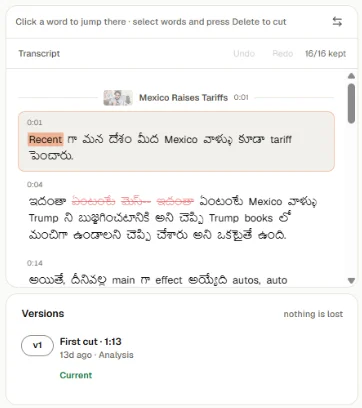
Click a word to jump the video there.
Cut and keep
- Select words and a menu appears. Remove and Keep act on the whole sentence. Caption and ▶ Play are there too.
- Right-click a word to cut just that word: ✕ Cut word. A cut word offers ↩ Restore word or ↩ Restore phrase.
- Hold the pointer over a segment to see its Cut or Restore button.
Cut words stay in the script, struck through, so you can bring them back any time.
The Delete key
The hint above the script says to press Delete. That key doesn't cut words yet. Use Remove in the menu, or right-click a word.
Review the AI's cuts
Segments the AI cut show how confident it was (% AI confidence). Press ↩ Restore segment to bring one back. N to review marks the cuts it was least sure of: check those first.
The toolbar shows how much you kept, for example 11/14 kept.
Correct a word
Double-click a word to fix its spelling. Corrections help captions and the AI. To redo the AI edit with them, press Re-analyze with corrections.
To teach Toast names and terms for every project, add them in Settings › Vocabulary.
Add media to a segment
Hold the pointer over a segment and press Add Media (or Edit Media) to put B-roll over it.