Start a talking-head video
Drop your video of you speaking. Toast cuts the silences, tracks your face and adds captions, B-roll and music.
A talking-head video is a video of you speaking: a podcast, a tutorial, a vlog, a talk or a course. Toast cuts the silences and mistakes, adds captions and a visual change every few seconds, and you edit it by chatting or by editing its words.
Where your project is kept
Your project is kept in this browser on this computer. To see what is sent to Toast and why, read the privacy page.
Before you start
Use a desktop or laptop computer with Chrome, Edge or Firefox. iPhone and iPad can't process video. If your video is on your phone, move it to your computer first. If you see Browser not supported or Not enough memory on this device, switch to a computer with one of those browsers.
Keep the tab open while you work. Your project lives in this one browser.
The first time, Toast asks one quick question: How experienced are you with video editing? Answer it, or press Skip.
1. Drop your video
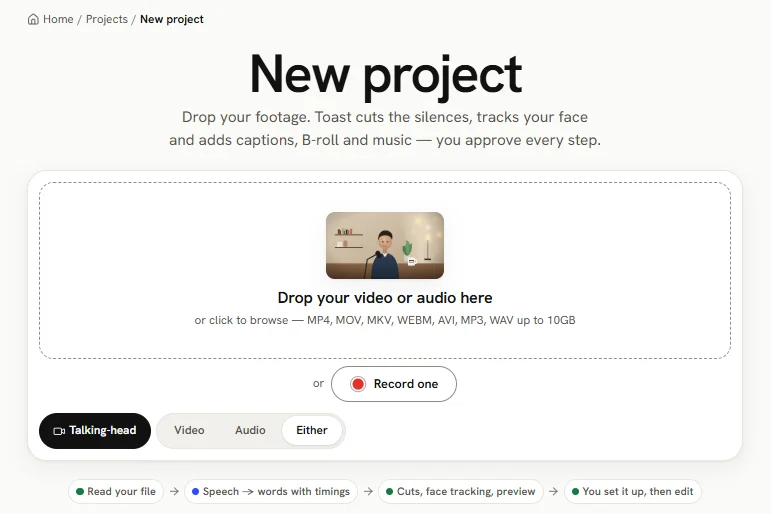
- On Home, press the Talking head card. It opens with Video already picked. (The Video / Audio / Either switch is under the drop zone if you want audio instead.)
- Drag your file onto Drop your video here, or click to browse. You can also press Record one to record in the browser.
| Accepted | Size |
|---|---|
| MP4, MOV, MKV, WEBM, AVI (video) | Up to 10 GB |
| MP3, WAV, M4A (audio) | Up to 10 GB |
Recorded in takes?
Add them all, and Toast joins them into one video. Drop several files at once, or press + Add another clip. Check the order under Takes · check the order (drag to change it), then press Yes, lock and process. Up to 20 takes and 10 GB in total.
2. Check and process
The Upload check shows the file, its size, duration and resolution. Press Process file.
Toast may stop and ask:
- No audio track found: the file has no sound. Press Upload a different file.
- No speech detected: Toast heard no one speaking.
- No face detected in your content: press Yes, use full B-roll to cover the video with B-roll, or No, I'll choose.
- Not enough credits for this. (or a wallet message): add money in Settings › Wallet, then try again.
3. Set up your project
While Toast works in the background, it asks five questions (Question N of 5):
- What kind of content is this?
- What format are you creating for? Landscape, Portrait or Both.
- How much B-roll do you want? Light, Medium, Heavy, Full B-roll or None.
- Background music? Auto-suggest, I'll upload my own, or No music.
- Find shareable clips? Yes, find viral clips, or No, skip this.
Check Your answers (press Change to fix one), then press Start Editing.
In the background you see the steps: Saving your file, Analyzing audio, Generating preview, Cleaning up audio, Transcribing speech, Detecting faces, then Ready to go! If something fails, press Retry.
If you leave before Start Editing, open the project from All Projects and press Finish setup.
Toast detects the language by itself. On wide screens it shows as a chip in the editor's header.
4. Let Toast finish the edit
The editor opens and Toast finishes the AI edit there. The video shows Processing… and the steps appear in the AI Chat panel on the left.
- Partway through, a card asks you to Review B-roll suggestions. Untick any you don't want and press Continue with N/M, or press Continue without B-roll. If you don't answer, Toast continues by itself after 5 minutes.
- A Cultural context card may ask you to confirm your region.
When the steps finish, the cuts, captions, B-roll and music are in place. Now edit it: see The editor.
5. Export
Press Export at the top right. Keep this tab open and in front until Your video is ready., then press Download MP4. Captions are on by default and are drawn into the video while Burn-in captions is on. See Export.
What it costs
A talking-head video is charged by the minutes of footage you bring in, once. Exporting and re-editing are free. See Pricing and wallet.