Event videos (early access)
The clips filmed at an event, read for who spoke and the best moments, cut into a highlight reel.
Early access
Event videos are being tried with a few people first. If you do not see the Event video card on Home, they are not on your account yet. Opening an event page then says Event videos are not available on this account yet.
An event video starts from every clip filmed at one event: a function, a launch, a talk, a wedding. Toast finds who spoke and the best moments, and cuts a highlight reel. You upload the clips so Toast can read them; the privacy page explains what is kept and sent.
Event videos are not charged today. Find your events under All Projects → Event videos.
Steps
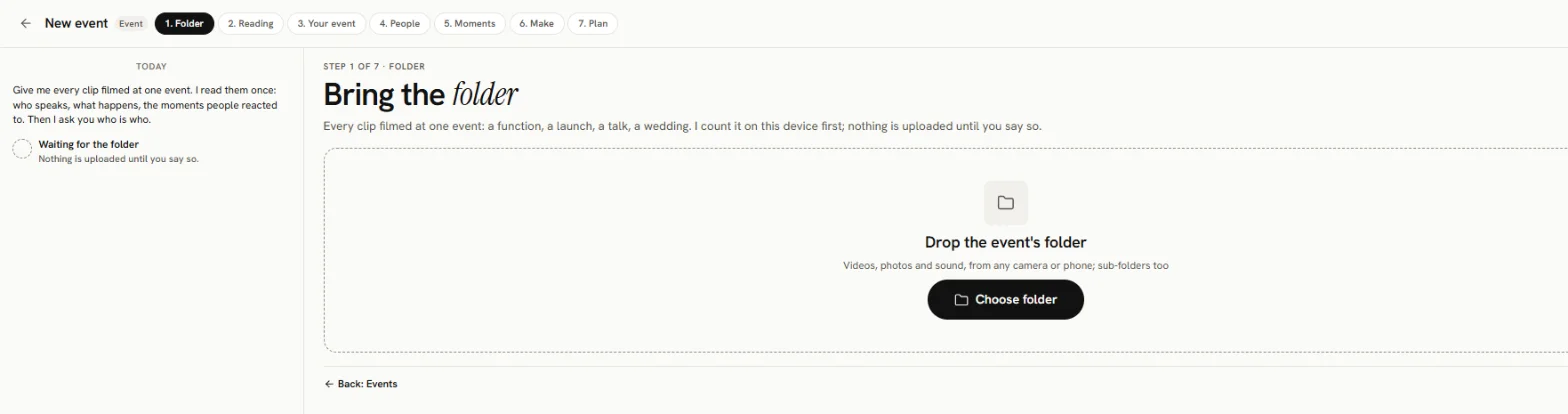
- Folder: under Bring the folder, drop the event's folder or press Choose the event's folder. Toast counts the files on your device first; nothing is uploaded until you say so.
- In Shall I read it?, type What was it? (for example "Amma's retirement function"). Tick I filmed this event, or the organiser lets me use the footage. Press Upload and read.
- Reading: Toast reads the event. You can close the tab; it keeps reading.
- Your event: the people, The strongest moments and anything that Needs your eye.
- People: press Name the people. For each person, type a Name (as it should appear on screen) and an optional Role (for example "Host"), and press Save. Use Feature them and Same person as to tidy the list. Toast tells people apart by what they wear, where they are and their voice, never by their face.
- Moments: the strongest first. Press What should I make?
- Make: see below.
Make a highlight reel
The Highlight reel is the best things said at the event, over its moments.
- Length: 20 to 180 seconds (60 by default).
- Shape: 16:9, 9:16 or 1:1.
- Anything you want? For example "Focus on the speeches about her".
- Children: if children appear in some clips, Toast asks whether they are your family or you have their parents' OK. Answer Yes, use them or No, leave them out before going on.
Press Show me the plan. Toast chooses the best lines and moments. Planning takes a few seconds. Press Plan it again for another plan, or Make the video.
When Your video is ready, download it. Show the music credit where you post it. Make it again makes it again after a change.
It needs at least 3 sentences said, or enough good moments.
Limits
Up to 5,000 files per event. File types are the same as a property shoot.