Frames and render
Approve the scene list, let Toast draw and check every frame, fix any frame, then render and export.
Review: every frame, planned
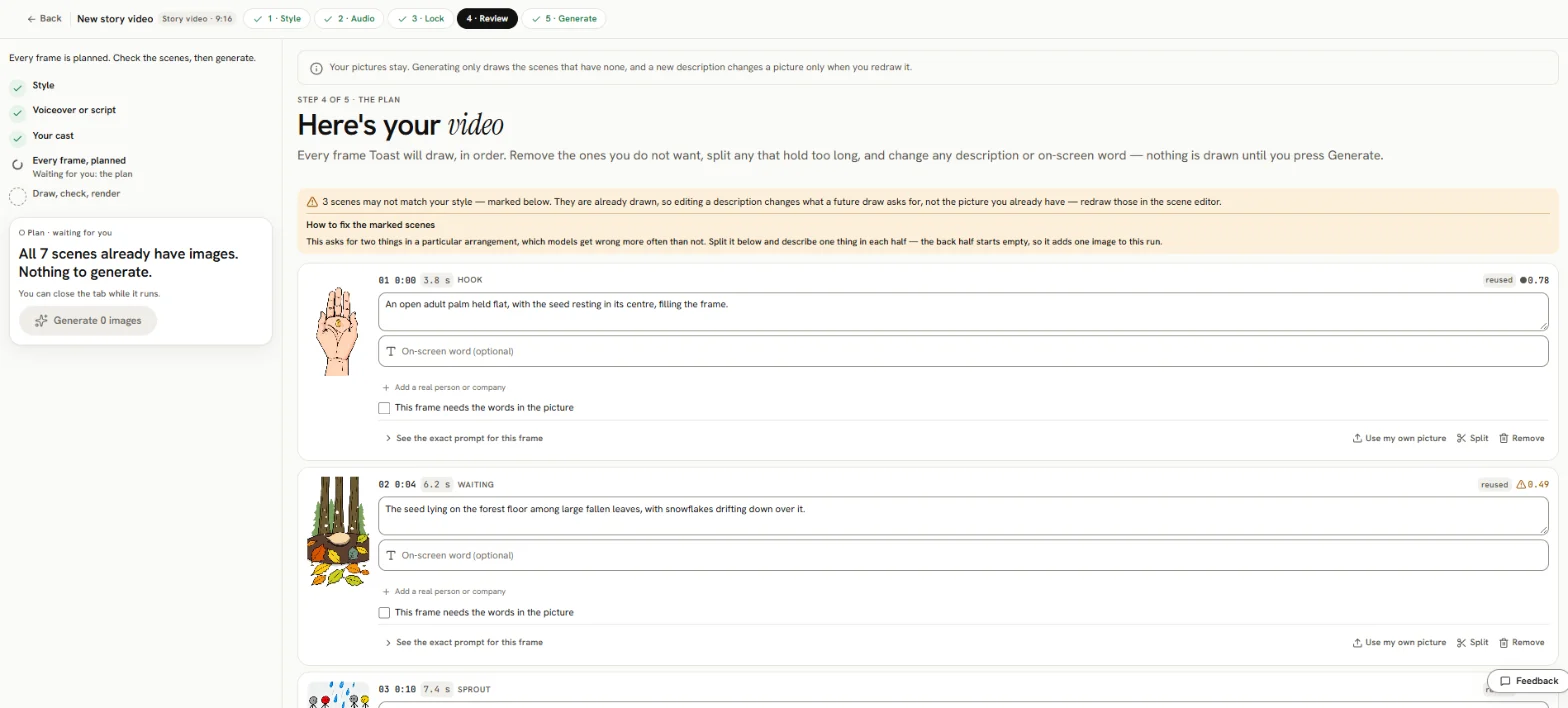
The plan page, Here's your video, lists every frame Toast will draw, in order. Before anything is drawn you can:
- remove frames you do not want
- split a frame that holds too long
- change any description or on-screen word, or press Rewrite it for me
- switch the picture quality
Press Generate N images (or Find N stock photos for a stock-photo video).
Real people and companies
Toast never draws real people or company logos. When a frame names one, Toast looks the name up and places a licensed photo or logo, or the name if there is none. On a frame that names one, you can:
- Say who … is, if Toast picked the wrong person.
- Use your own picture for …, if you have one you may use.
Generate: draw and check
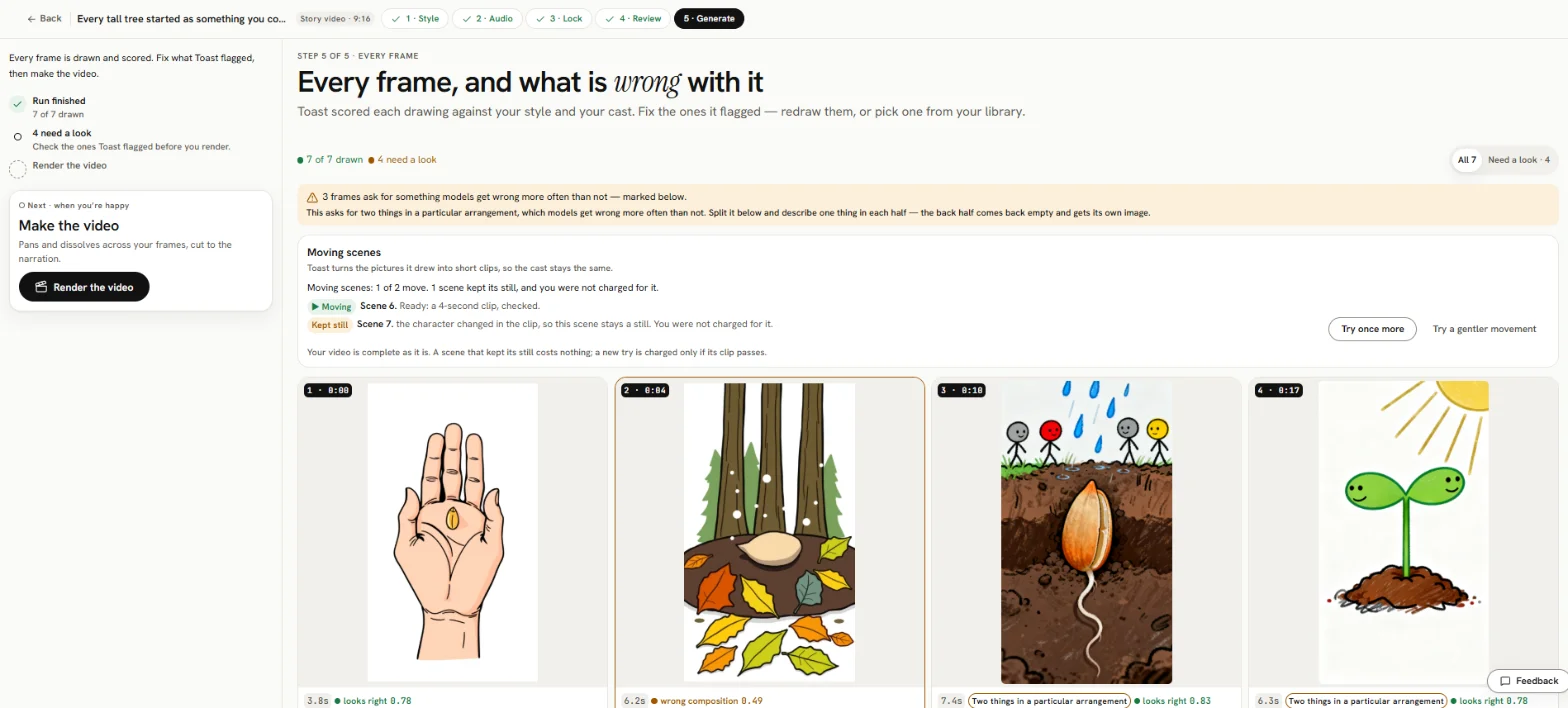
You can close the tab while it runs. The progress shows N of M frames. Press Stop the run to stop. When it ends, you can retry the frames that failed.
Toast checks each frame: for words painted into the picture, for facts that do not match the script, and for cast members that do not look like their portrait. A frame that fails is drawn again.
Toast draws a limited number of pictures for an account in any 24 hours, and per project. If you reach the daily limit, Toast says Daily image generation limit reached. Wait and try again later.
Fix a frame
The frames page, Every frame, and what is wrong with it, shows every frame. Filter All N or Need a look · N to see the ones Toast is unsure of. For each frame:
- Redraw: same description, a new attempt. Draws one image.
- Change the description, then Redraw.
- Tweak this drawing: keep the picture and change one thing.
- Pick from library: reuse a picture you already have in Toast.
- Use my own picture: put a picture you have on the frame. Nothing is drawn for it.
- Save the image: download the picture.
A stock-photo scene has Draw one instead.
Words on a frame are added by Toast over the picture, not painted into it by the image model.
Render
Under Make the video, press Render the video. Toast adds pans and dissolves across your frames, cut to the narration, with captions and cards. The stages are Getting your pictures ready, Drawing the motion, Saving your video, Placing captions and cards and Finishing up.
The render happens in your browser. Keep this tab open and in front until it finishes. In the background it is much slower.
Stop stops the render. Render again renders after a change.
If your script document has a music cue sheet, Toast adds licensed music that matches it. Without one, the video has no music.
Get your video
When it is done (Rendered Ns of video.), press Open in the editor. This is how you get your video: in the editor, press Export, then Download MP4. See Export. You can also add more in the editor before you export.
Under Credits for your video description, press Copy and paste the credits for photos and music where you post the video. Creative Commons photos require this credit.
Fix what Toast's check found
Being rolled out
This check is not on every account yet. If you don't see it after your export, it is not on for your account.
After you export a story video, Toast's AI watches the finished video and checks it: the opening, whether each picture shows what is said, the story, the pace, whether a person or place looks the same each time, the words on screen, and whether it is ready to post.
What it found is listed under your video, each with the time and the reason.
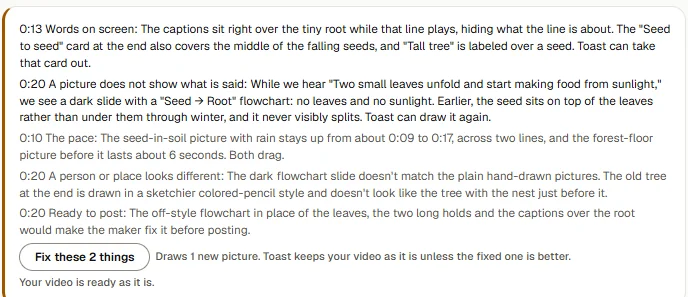
It comes in two kinds:
- What Toast can fix. Each line says how: Toast can draw it again, Toast can find another photo, or Toast can take that card out.
- What is yours to judge. These are shown in grey. Toast does not change them; look at them and decide.
Your video is ready as it is. Nothing changes until you press the button.
To fix them:
- Press Fix these N things (or Fix this thing). If the fix draws new pictures, the line beside the button says how many. Each one is charged like a Redraw; finding another photo or taking a card out costs nothing.
- Keep the page open and in front. The button reads Fixing, then making the video again… while Toast makes the changes and exports the video again.
- Toast compares the new video with the one before and keeps the better one:
- Toast kept the fixed video, with the reason, or
- Toast kept your earlier video, which its check found as good or better, with the reason. Every picture and card is put back as it was.
If something goes wrong part way, Toast puts your video back as it was and says so.
You can press the button at most twice for one video.
What it costs
A story video is charged for the minutes of narration, and for each picture Toast draws. A drawn story video shows no price before drawing; Best costs more per picture than Standard. A stock-photo video shows its price. If your wallet is short, Toast says so before it starts. See Pricing and wallet.