The brief
What the video is made from, your request, your material, your brand and the settings.
The brief asks What is the video about? (or, with a source, What is it made from?). This page follows the screen from top to bottom.
Made from
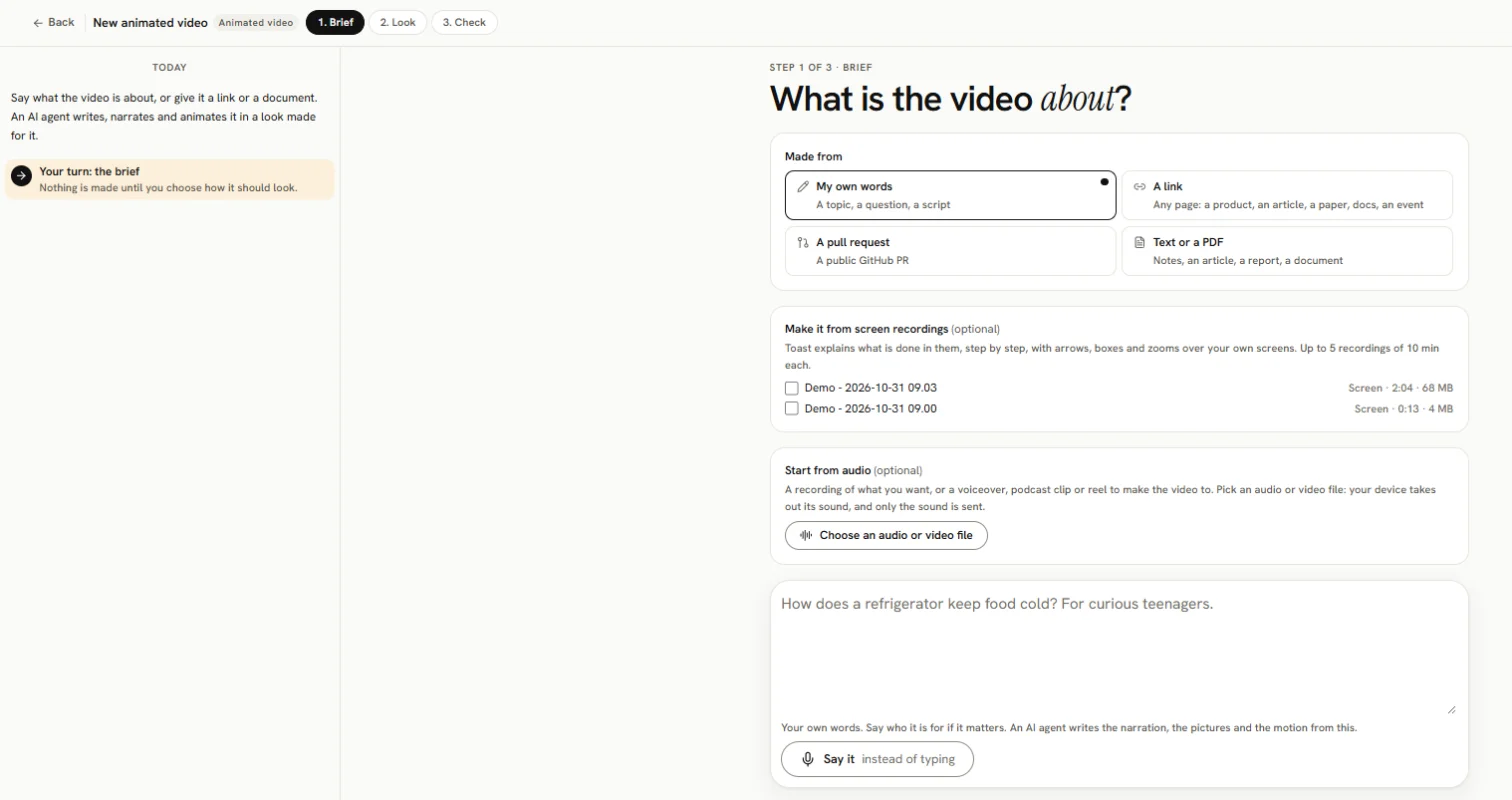
- My own words
- A link: a website or an article. Press Read it.
- A pull request: a public GitHub PR. Then choose Who is it for?: Everyone, Developers or Product people.
- Text or a PDF: paste text, or pick a PDF, .txt or .md file. It is read on your device and only its text is used (the first 40,000 characters). Press Use this text.
After reading, Toast shows What Toast understood and asks Which video should Toast make? (an ad, an explainer, a how-to and so on), with its recommendation marked.
If the site has its own colours, Toast asks Make the video in these colours? Answer it: Yes, use these colours or No, let Toast choose a look.
After reading a website link, Screenshots of your website offers two ways to put your site in the video:
- Take screenshots: Toast takes screenshots of your website, the way a visitor who is not logged in sees it. Untick any you do not want and press Use the ticked screenshots. They become your pictures, shown as they are.
- Add your screenshots: add your own screenshots as your pictures (Show as is).
You can remove each screenshot before you make the video.
If Toast says Toast could hardly read this site, give it more before you make the video: what the site does in your own words, your prices or plans as lines of exact text, or Add your screenshots as your pictures. Or tick Make it from what Toast could read anyway.
A page about private people (a wedding site, a CV) needs a tick that it is yours, or that you have the permission of the people on it.
Start from audio
Under Start from audio, press Choose an audio or video file. Your device takes out the sound; only the sound is sent. Then choose What is this audio for?:
- Tell Toast what to make: press Put these words in the box. Toast writes down what you said and puts the words in the request box for you to correct. The recording is not kept.
- Make a video to this audio (3 to 90 seconds): the recording becomes the soundtrack. Tick This is my own audio or I have permission to use it, then press Make the video to this audio (0:42) (it shows the length). Length, narrator and music are then set by the audio, and the video goes straight to the Check step.
The request
Type what you want, up to 4,000 characters. Example: "a 30 second brand video for my website". You can press Say it instead of typing to dictate it.
With a source, the box becomes Anything to add? (optional).
Anything of yours to use?
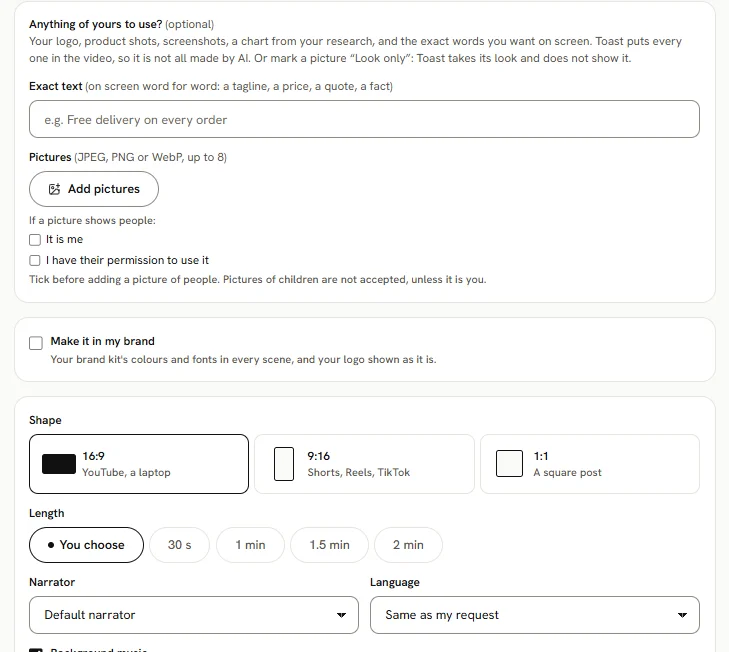
- Exact text: lines shown on screen word for word, such as a tagline, a price, a quote or a fact. Add another line for more.
- Add pictures (JPEG, PNG or WebP). If a picture shows people, first tick It is me or I have their permission to use it. A picture of a child is accepted only if it is you. For each picture pick:
- Show as is: placed and animated, never redrawn or recoloured.
- Style it: Toast may treat it to fit the look.
- Look only: a style reference. Toast copies its look and never shows it.
Toast checks the finished video: all your text and pictures must be in it.
Make it in my brand
Tick Make it in my brand to use your brand kit: your logo, business name, website, colours and fonts. You can edit the kit right there. After reading a website, Save to my brand kit keeps its colours.
Settings
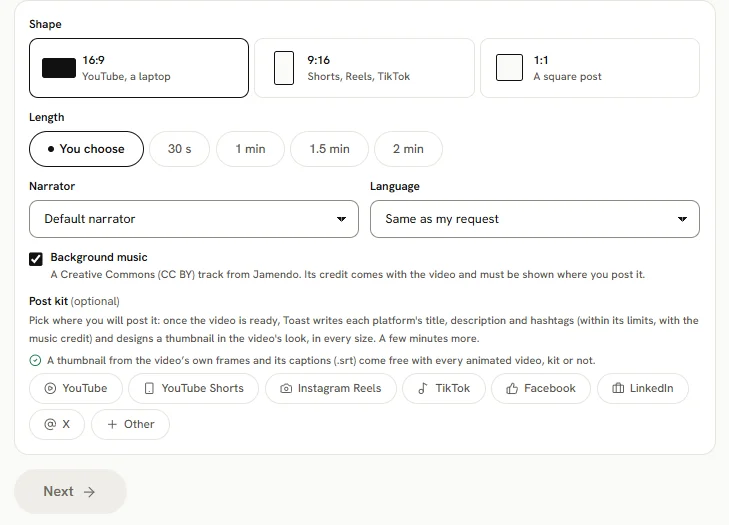
| Setting | Options |
|---|---|
| Shape | 16:9 (YouTube, a laptop), 9:16 (Shorts, Reels, TikTok), 1:1 (a square post) |
| Length | You choose, 30 s, 1 min, 1.5 min, 2 min |
| Narrator | Default narrator, or one of Toast's stock voices |
| Language | Same as my request, English, Hindi, Telugu, Tamil, Spanish, French, German, Portuguese, Japanese |
| Background music | On or off. The music is licensed and comes with a credit line. |
| Post kit | Optional: YouTube, YouTube Shorts, Instagram Reels, TikTok, Facebook, LinkedIn, X, Other |
A thumbnail from the video's own frames and its captions (.srt) come free with every animated video, kit or not.
Press Next. If something is missing, the reason shows beside the button.