Home
Where you start a video. The cards, the box, and where your work is kept.
What do you want to make?
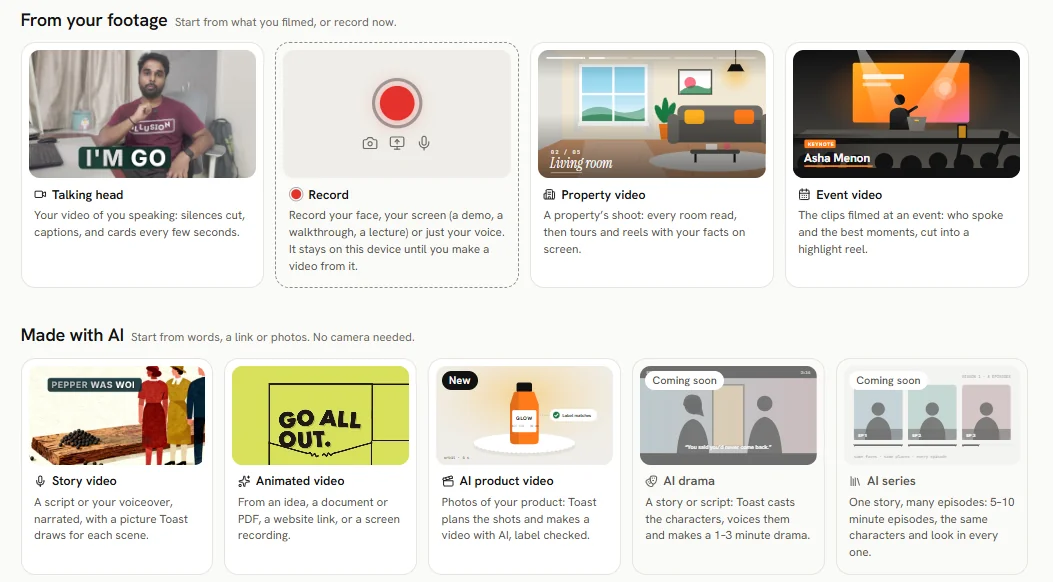
Home shows one card for each kind of video, in two rows. Pick the one that matches what you have.
From your footage: Start from what you filmed, or record now.
| Card | You give Toast | Guide |
|---|---|---|
| Talking head | A video of you speaking. Toast cuts silences and adds captions and cards every few seconds. | Talking head |
| Record | Nothing yet: record your face, your screen or your voice. | Record |
| Property video | A property's shoot. Toast reads every room, then makes tours and reels with your facts on screen. | Property video |
| Event video | The clips filmed at an event. Toast finds who spoke and the best moments. | Event video |
Made with AI: Start from words, a link or photos. No camera needed.
| Card | You give Toast | Guide |
|---|---|---|
| Story video | A script or your voiceover. Toast narrates it and draws a picture for each scene. | Story video |
| Animated video | An idea, a document or PDF, a website link, or a screen recording. | Animated video |
| AI product video | Photos of your product. Toast plans the shots and makes a video with AI, label checked. | |
| AI drama | A story or script. Toast casts the characters, voices them and makes a 1–3 minute drama. | |
| AI series | One story, many episodes of 5–10 minutes, with the same characters and look in every one. |
Event video is early access, so most accounts do not see its card. AI product video is early access too: on most accounts its card says Coming soon. AI drama and AI series say Coming soon on every account; they are not made yet. A card that says Coming soon cannot be opened. A card that says New is a kind of video just opened to your account.
On a phone, slide each row sideways to see all its cards.
Or describe it here
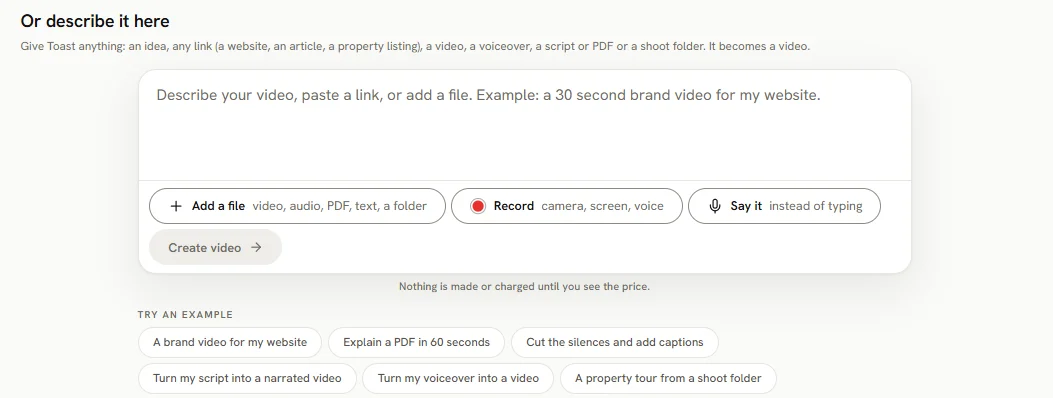
Under the cards is one box: Give Toast anything: an idea, any link, a video, a voiceover, a script or PDF, or a shoot folder. It becomes a video.
- Type an idea, or paste a script or a link.
- Add a file, or drop it on the box.
- Press Say it instead of typing (Say it on a phone) to dictate, or Record to record something new.
- Try an example shows ideas to start from.
- Press Create video. It stays grey until you have typed something or added a file.
Toast works out what kind of video it can be, and asks you to pick when there is more than one. Nothing is made or charged until you see the price.
Where your work is
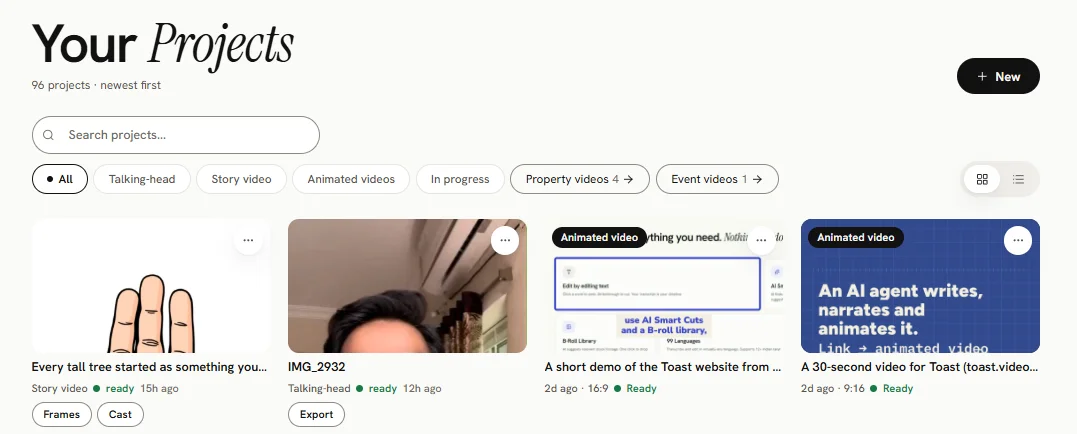
- All Projects lists your talking-head, story and animated videos. Use Property videos and Event videos at the top of that page to see those.
- Library holds your pictures, Your recordings (kept in this browser) and the videos you Shared on Toast.
Talking-head projects are kept in your browser, so open them on the same computer and browser you made them in. A browser keeps up to 20 projects. Don't use a private or incognito window to make talking-head videos.