Record and dictate
Record your face, your screen or your voice in Toast, and say instructions instead of typing them.
Record
Press the Record card on Home (or Record under the box on Home). You can record:
- Camera: your face
- Screen: a demo, a walkthrough, a lecture. This needs a computer browser; it is greyed out on phones.
- Voice only
Recording is free. As the card says, a recording stays on this device until you make a video from it.
Options
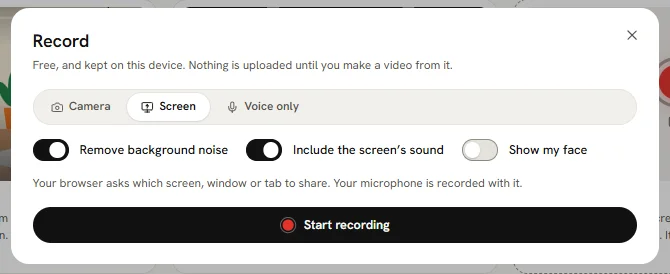
- Remove background noise (on by default): cleans your voice after you press Stop.
- Include the screen's sound (screen recordings)
- Show my face (screen recordings): a face bubble in the corner. Choose Circle or Square and Small, Medium or Large. Drag it, or move it with the arrow keys.
Steps
- Choose what to record and the options.
- Press Start recording. Your browser asks for permission to use the camera, microphone or screen: press Allow. Press Stop when you are done.
- Press Make a video from it, Record again or Download.
What should this become?
Make a video from it asks what the recording should become:
| Recording | It can become |
|---|---|
| Camera | A talking-head edit |
| Screen | An animated product demo, or a walkthrough, edited |
| Voice | A story video, a video from stock photos, an animated video with your voice, or a clean voiceover |
Find your recordings
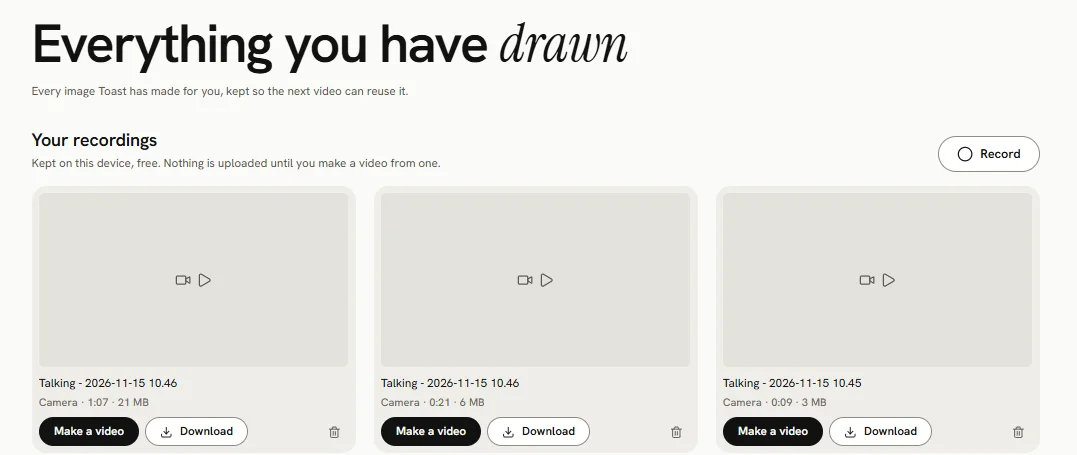
Recordings are kept in this browser, under Library → Your recordings. From there: Make a video, Download or Delete. A recording made in another browser or on another device is not there; download recordings you want to keep.
Dictation
Wherever you see Say it instead of typing (Say it on a phone), in the box on Home and the animated video brief, press it and speak. Press Stop when you are done, and Toast writes your words where the cursor is, for you to correct. Press Esc to throw the recording away.
- Up to 2 minutes at a time. It stops by itself after 2 minutes.
- Dictation is free.