Upload a shoot
Pick a property's folder and upload its videos, photos and sound.
Start a property
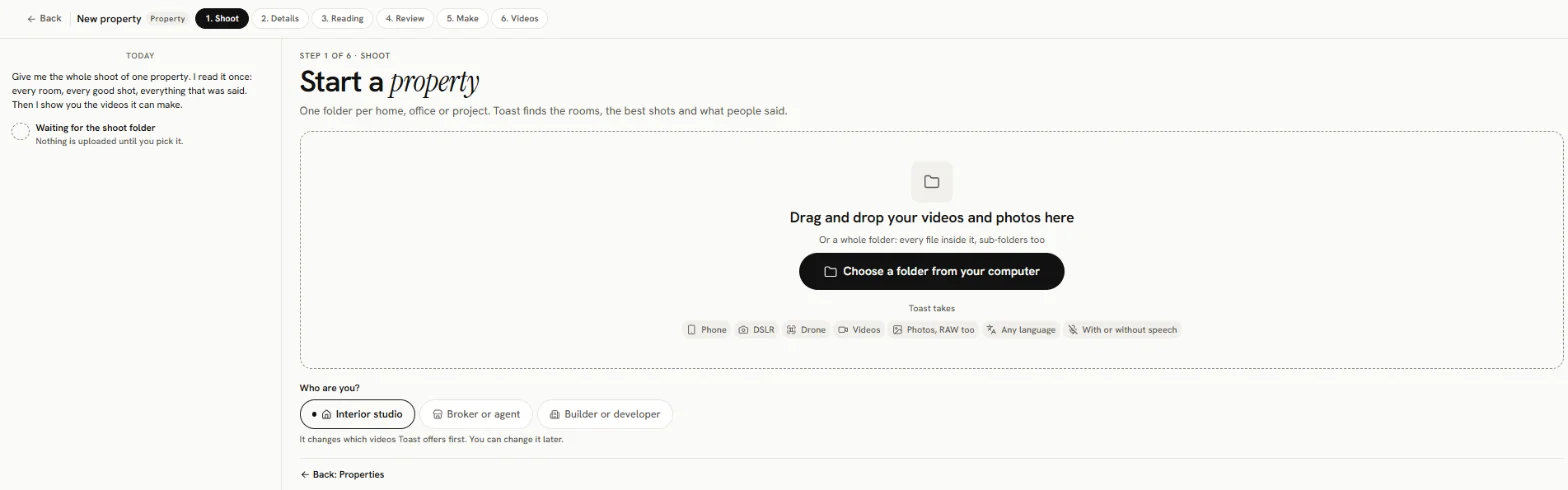
- On Home, press the Property video card. (Or go to All Projects, press Property videos, then New property.)
- Under Who are you?, pick Interior studio, Broker or agent or Builder or developer.
- Drag the files onto Drag and drop your videos and photos here, or press Choose a folder from your computer. A whole folder works, sub-folders too.
The property is named after the folder. You can rename it on the Details step.
One folder per property
Keep each home, office or project in its own folder. Toast finds the rooms itself, so you do not need to sort the files. If you have photos of the rooms before the work, put them in the same folder: you mark them later, on the Review step.
What Toast takes
Phone, DSLR or drone footage, in any language, with or without speech.
| Kind | File types |
|---|---|
| Video | mov, mp4, m4v, mts, m2ts, mxf, avi, mkv, webm, insv, lrv, 3gp |
| Photo | jpg, jpeg, png, heic, heif, dng, tif, tiff, webp, cr2, cr3, nef, arw, raf, orf, rw2 |
| Sound | wav, mp3, m4a, aac, flac, ogg, opus |
Other files are left out, and Toast tells you how many. A property holds up to 5,000 files, each up to 50 GB.
While it uploads
The progress bar first says Reading the files on this device, then Uploading, then Uploaded.
- Keep this tab open until it finishes. If it closes, pick the same folder again: files already sent are skipped.
- If a file is already in another of your properties, Toast asks Use it here too?
- If some files fail, press Try them again.
You do not have to wait: press Tell us about it to fill in the details while it uploads. After the upload, Toast makes small copies of each file (Making small copies) so it can read and preview them.
Adding more later
Open the property and use Add more footage. Files already uploaded are skipped.