Video Templates
Apply professional video templates for YouTube Shorts, TikTok, Instagram Reels, and landscape formats.
Video Templates
Templates let you quickly apply a professional look to your video with a single click. Toast includes templates optimized for different platforms and aspect ratios.
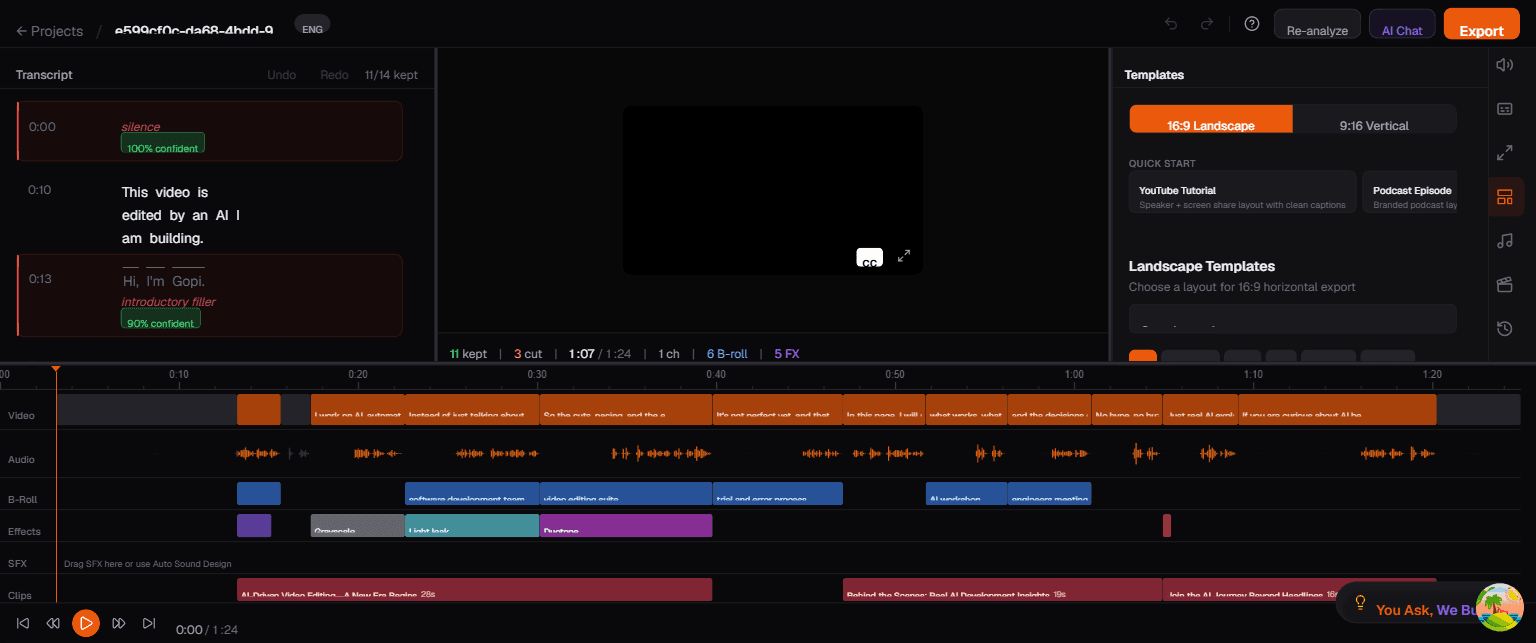
The Templates Panel
Open the Templates panel by clicking the Templates icon (grid) in the right sidebar. At the top of the panel, you will find two key controls:
Aspect Ratio Toggle (16:9 / 9:16)
Two tabs at the top let you switch between 16:9 (landscape) and 9:16 (vertical) templates. This determines which set of templates is displayed. Choose the aspect ratio that matches your target platform:
- 16:9 — YouTube, website embeds, presentations
- 9:16 — TikTok, Instagram Reels, YouTube Shorts
Quick Start Templates
Below the aspect ratio toggle, the panel offers Quick Start presets that apply a complete look in one click:
- YouTube Tutorial — Optimized layout for educational content with clean framing
- Podcast Episode — Designed for talking-head podcast recordings
Category Filters
A row of filter buttons lets you narrow down templates by category:
| Category | Description |
|---|---|
| All | Show every available template |
| Standard | Clean, straightforward layouts |
| Split | Dual-crop or split-screen layouts (speaker + content) |
| PiP | Picture-in-picture layouts with the speaker in a smaller window |
| Branded | Templates with brand color frames and logo placement |
| Creative | Artistic layouts with phone mockups, gradients, or unique framing |
Click a category to filter the template grid. Each template displays a live thumbnail preview so you can see exactly how your video will look before applying.
Search
Use the search bar to find templates by name or keyword.
Applying a Template
- Click the Templates icon (grid) in the right sidebar
- Select the aspect ratio tab (16:9 or 9:16)
- Optionally filter by category or search by name
- Browse available templates — each shows a live thumbnail preview
- Click a template to apply it
- The video preview updates immediately with the template applied
Template Types
Shorts Templates (9:16)
Optimized for vertical video platforms:
- Dual-Crop — Speaker on top, relevant content on bottom (great for tutorials)
- Phone Mockup — Video displayed inside a phone frame
- Full Bleed — Edge-to-edge vertical video with smart face tracking
Landscape Templates (16:9)
For YouTube and general web video:
- Clean — Minimal, professional look
- Brand Frame — Your brand colors as a decorative border
- Lower Third — Name/title overlay at the bottom
Custom Templates
You can customize any template with:
- Brand colors — Apply your brand's primary and secondary colors
- Custom text — Add titles, subtitles, or watermarks
- Logo placement — Position your logo in any corner
Template + Reframe
When switching to a vertical template (9:16) from a landscape source (16:9), Toast uses smart reframe powered by face tracking to keep the speaker centered. The crop position follows the speaker's face automatically.
Tips
- Preview before committing — templates show live thumbnails so you can compare options
- Brand consistency — set your brand color (#hex) once and it applies across all templates
- Combine with captions — templates and caption styles work together for a polished look
- Quick Start for speed — if you just want a good default, use the YouTube Tutorial or Podcast Episode quick start