AI Reasoning
Understand why the AI made each editing decision with the AI Reasoning panel.
AI Reasoning Panel
The AI Reasoning panel shows you why the AI made each editing decision — which segments it kept, which it removed, and the reasoning behind each choice. This transparency helps you understand the AI's logic and make better manual adjustments.
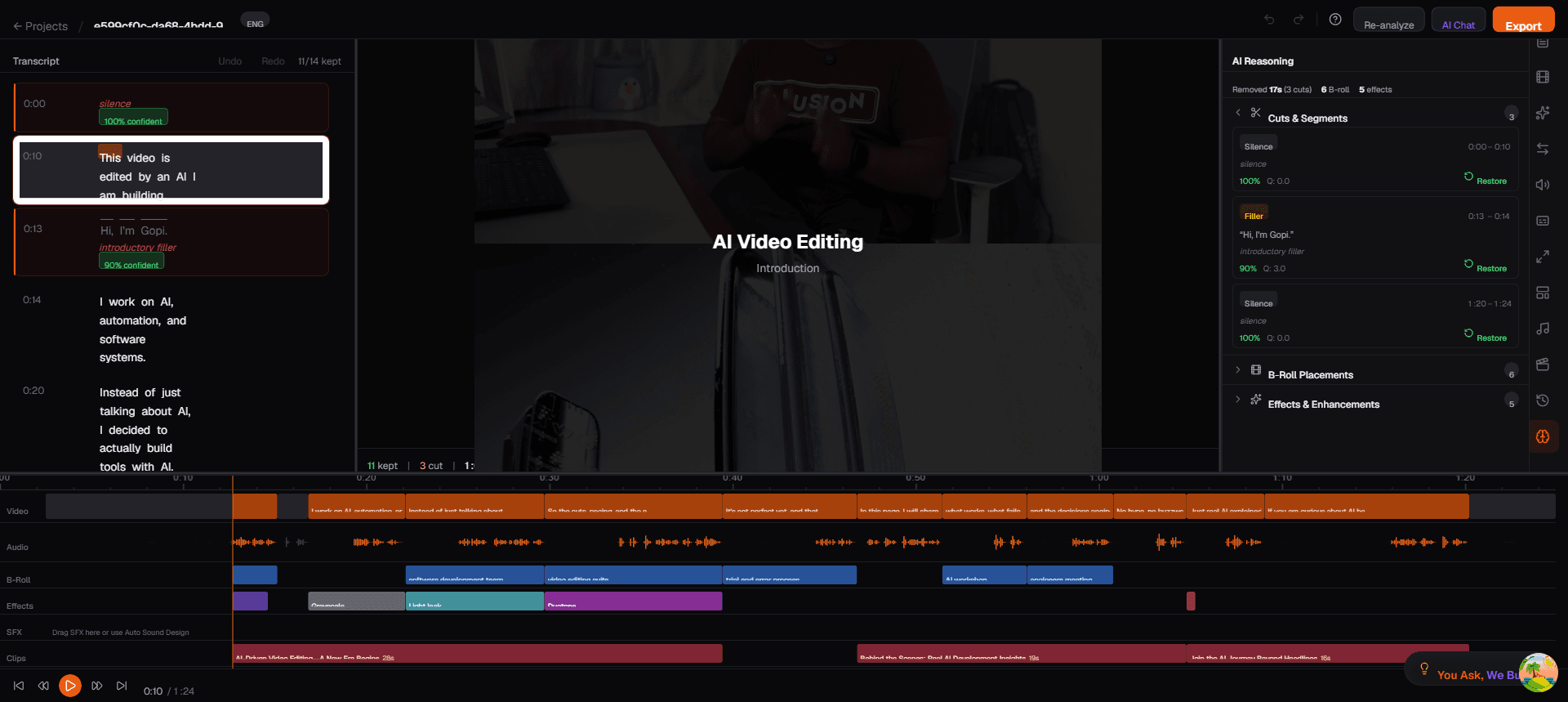
Open the AI Reasoning panel by clicking the Brain icon in the right sidebar.
What the AI Explains
When Toast processes your video, the AI analyzes the transcript and creates an edit manifest. The Reasoning panel shows the AI's thought process for each decision:
Removed Segments
For each segment the AI removed, you can see:
- What was said — The transcript text of the removed segment
- Why it was removed — The specific reason, such as:
- Filler words ("um", "uh", "like", "you know")
- Long pauses or silence
- Repeated statements or false starts
- Off-topic tangents
- Introductory filler before the speaker gets to the point
- Confidence level — How confident the AI is in the decision (e.g., 90% confident)
Kept Segments
The AI also explains why it kept certain segments, especially ones that might seem borderline:
- Core argument or key point
- Essential context for what follows
- Engaging storytelling moment
- Strong opening or closing statement
How to Use AI Reasoning
Review Decisions
- Open the AI Reasoning panel
- Scroll through the list of decisions
- Each entry shows the segment text and the AI's reasoning
- Click on any entry to jump to that moment in the video
Override a Decision
If you disagree with the AI's reasoning:
- Find the segment in the Reasoning panel
- Click on it to jump to that point in the transcript
- In the Transcript panel, click the strikethrough text to restore a removed segment, or click a kept segment to remove it
- The edit is applied immediately — no need to re-run the AI
Learn Editing Patterns
Over time, reviewing AI reasoning helps you develop an intuition for:
- Which filler words actually matter (some "like" usage is natural and should stay)
- How aggressive to be with silence removal
- Where the AI's judgment aligns with your editing style and where it diverges
Tips
- Trust but verify — The AI is right most of the time, but always play through the final edit to catch edge cases
- Check high-confidence removals — Segments removed with 90%+ confidence are almost always correct; spend your review time on lower-confidence decisions
- Use reasoning to learn — If you are new to video editing, the AI Reasoning panel is an excellent teacher for understanding what makes a good cut