Reframe
Change your video's aspect ratio with smart face-tracking reframe.
Reframe
The Reframe panel lets you change your video's aspect ratio for different platforms. Toast uses smart face tracking to automatically keep the speaker centered when cropping from a wider to a narrower format.
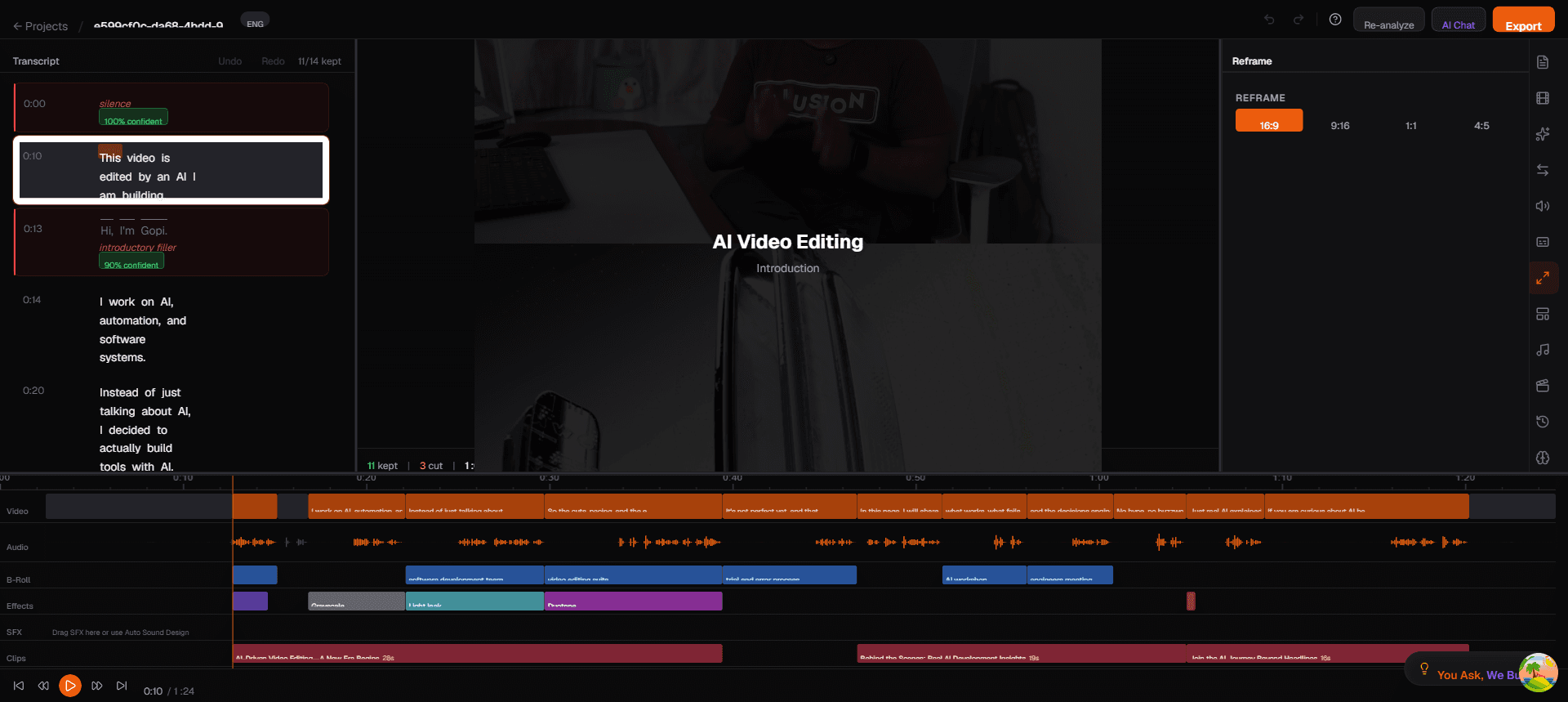
Open the Reframe panel by clicking the Crop/Reframe icon in the right sidebar.
Aspect Ratio Options
The panel displays four aspect ratio buttons. Click one to apply it immediately — the video preview updates in real time.
| Aspect Ratio | Format | Best For |
|---|---|---|
| 16:9 | Landscape (wide) | YouTube, websites, presentations, desktop viewing. This is the standard widescreen format and the default for most source video. |
| 9:16 | Vertical (portrait) | TikTok, Instagram Reels, YouTube Shorts, Snapchat. The standard format for mobile-first short-form video. |
| 1:1 | Square | Instagram feed posts, LinkedIn, Facebook feed. Square format works well in social feeds without requiring full-screen viewing. |
| 4:5 | Portrait (tall) | Instagram feed (optimized), Facebook ads. Slightly taller than square — takes up more screen space in feeds than 1:1 while not being as extreme as 9:16. |
Smart Face Tracking Reframe
When you switch from a wider format (16:9) to a narrower one (9:16, 1:1, or 4:5), the video needs to be cropped. Instead of just center-cropping (which might cut off the speaker), Toast uses MediaPipe face tracking data collected during initial processing.
How It Works
- During video processing, Toast runs face detection on every frame to map the speaker's face position
- When you select a narrower aspect ratio, the crop window automatically follows the speaker's face
- The crop position adjusts frame-by-frame so the speaker stays centered even when they move
- If the speaker is already centered, the crop is stable and does not jump around
What You See
- The video preview immediately shows the cropped view at the selected aspect ratio
- A crop mask overlay indicates what will be visible vs. cropped out
- The crop position follows the speaker's face in real time during playback
Reframe + Templates
Reframe and Templates work together. When you apply a 9:16 template (like Dual-Crop or Phone Mockup), the reframe aspect ratio automatically switches to 9:16. The smart face tracking ensures the speaker stays in frame within the template layout.
You can also set the aspect ratio first using Reframe, then browse templates filtered for that ratio.
Reframe on Export
The selected aspect ratio carries through to export. On the Export page, you will see the chosen aspect ratio confirmed in the export settings. The exported video file will have the exact dimensions matching your selected ratio:
- 16:9 — 1920x1080 (Full HD) or 3840x2160 (4K)
- 9:16 — 1080x1920 (Full HD vertical)
- 1:1 — 1080x1080
- 4:5 — 1080x1350
Tips
- Shoot in 16:9, export in any ratio — Toast makes it easy to repurpose one landscape recording for every platform
- Check the edges — After reframing to a narrower ratio, play through the video to ensure nothing important (whiteboards, screen shares) gets cropped out
- 1:1 is a safe middle ground — If you need one export that works across Instagram, LinkedIn, and Facebook, square is the most versatile
- Combine with B-roll — In narrow formats, B-roll in cutaway mode can cover sections where the crop is not ideal