Transcript Editor
Edit your video by editing text — click to seek, remove segments, restore cuts, and detect fillers.
Text-Based Video Editing
The transcript editor is the primary way to edit in Toast. Instead of scrubbing through a timeline, you read your transcript and make edits by interacting with the text.
How It Works
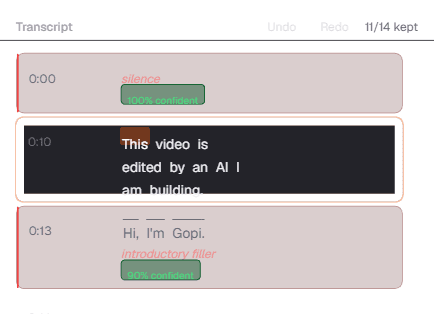
Your transcript is divided into segments — groups of sentences that the AI has identified as coherent thoughts. Each segment shows:
- Timestamp on the left (e.g., "0:14")
- Transcript text in the center
- Visual state indicating whether the segment is kept or removed
Kept Segments
Segments with white text on a dark background are kept — they will appear in your final export.
Removed Segments
Segments with strikethrough text are removed — they are cut from the output. These include:
- Filler words detected by the AI
- Dead air and long pauses
- Content the AI determined was redundant
Filler Word Detection
Toast automatically detects filler phrases and marks them:
- Text appears in orange italic with a label like "introductory filler"
- A confidence badge shows how confident the AI is (e.g., "90% confident")
- Low-confidence detections let you decide whether to keep or cut
Editing Actions
Click to Seek
Click any word in the transcript to instantly jump the video preview to that exact timestamp. This makes reviewing specific parts of your video fast and precise.
Toggle Segments
- Click a kept segment to remove it (adds strikethrough)
- Click a removed segment to restore it (removes strikethrough)
Changes are reflected immediately in the video preview and timeline.
Undo / Redo
Use the Undo and Redo buttons at the top of the transcript panel, or:
Ctrl + Zto undoCtrl + Shift + Zto redo
Toast maintains a 50-operation undo history, so you can freely experiment with cuts.
Segment Counter
The "11/14 kept" counter at the top-right shows how many segments are currently kept out of the total. This gives you a quick sense of how much content has been cut.
Tips
- Read through the transcript first before making changes — the AI usually makes good initial cuts
- Restore conservatively — if the AI cut something, check whether it improves flow before restoring
- Use AI Chat for bulk operations like "remove all filler sentences" instead of clicking one by one
- Click to seek is your best friend — always preview a cut before committing to it