Properties Panel
View and edit properties for selected segments, B-roll clips, and effects.
Properties Panel
The Properties panel appears on the right side of the editor and shows detailed settings for whatever element is currently selected. It is context-sensitive — the fields change depending on whether you have selected a video segment, a B-roll clip, or an effect.
Empty State
When nothing is selected, the Properties panel displays:
"Select a segment, B-roll, or effect to view properties."
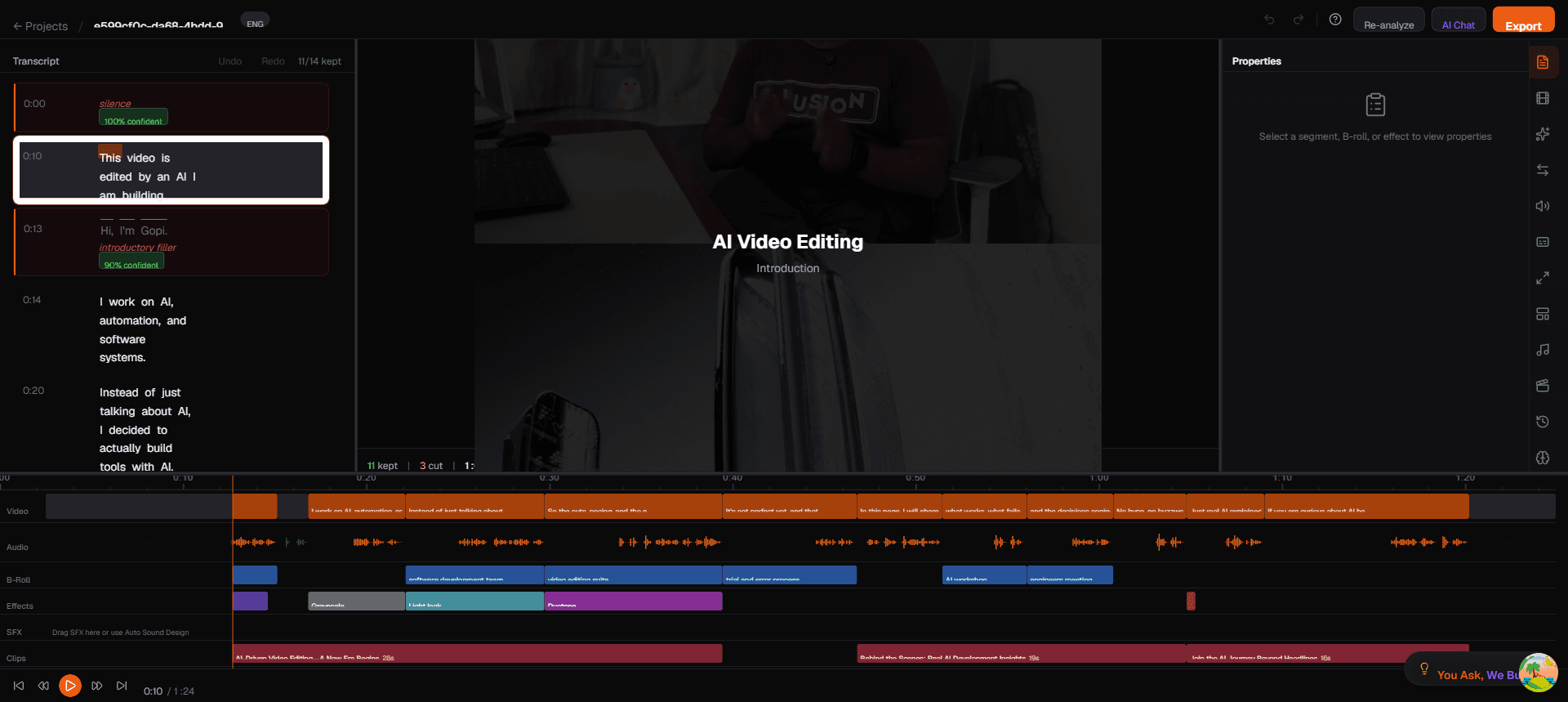
Click on any element in the timeline or in a sidebar panel to populate the Properties panel with its settings.
B-Roll Properties
When you select a B-roll clip (either by clicking it in the timeline or in the B-Roll panel), the Properties panel shows the following fields:
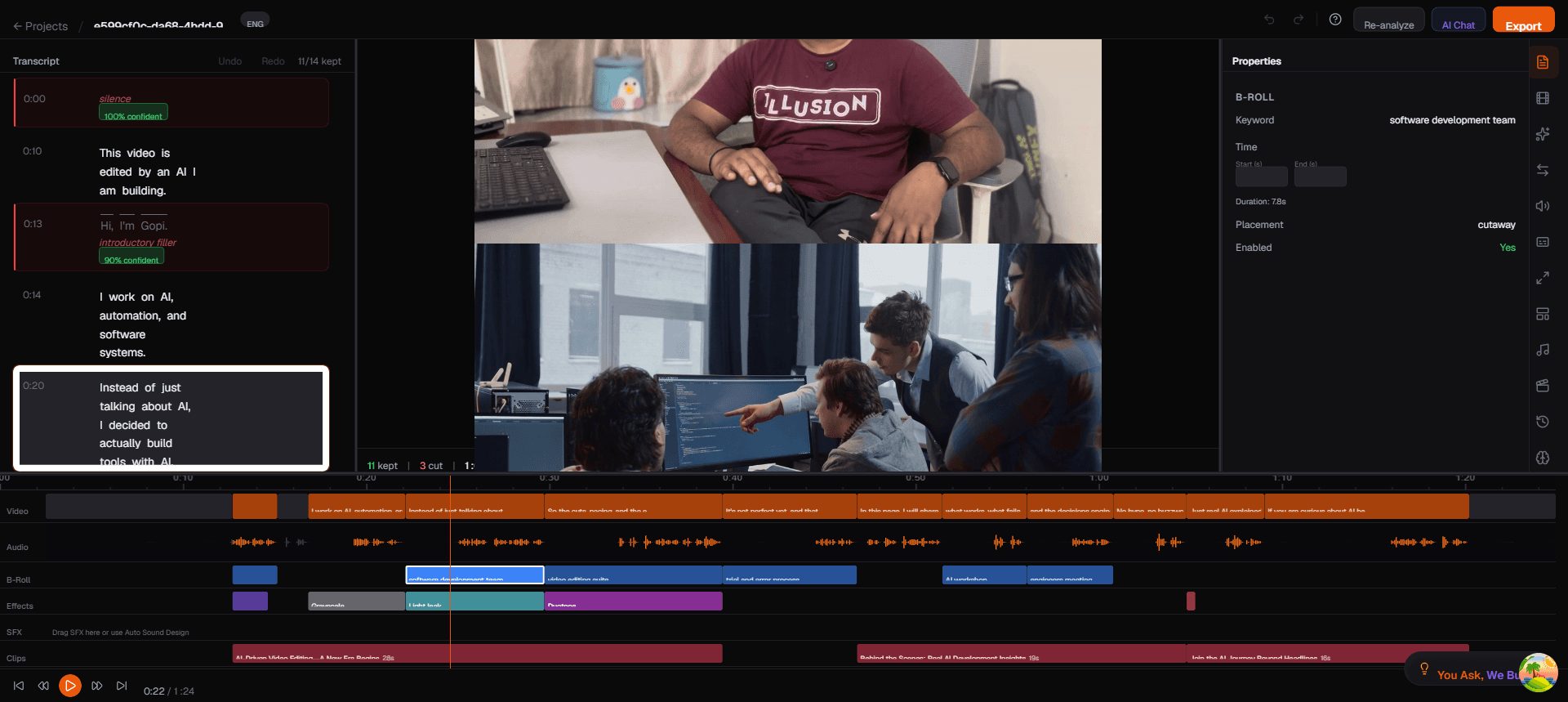
| Field | Description | How to Edit |
|---|---|---|
| Keyword | The search term used to find this stock footage (e.g., "software development team") | Click to edit the keyword and search for a different clip |
| Start (s) | The start time in seconds on your video's timeline where this B-roll begins (e.g., 20.2) | Type a new value or use the up/down arrows to adjust |
| End (s) | The end time in seconds where the B-roll stops (e.g., 28.1) | Type a new value or use the up/down arrows to adjust |
| Duration | Calculated automatically from End minus Start (e.g., 7.8s) | Read-only — changes when you adjust Start or End |
| Placement | The display mode: cutaway, PiP Left, PiP Right, or PiP Top-R | Select from the dropdown to change how the B-roll appears |
| Enabled | Whether this B-roll clip is active (Yes/No) | Toggle to temporarily disable without deleting |
Editing B-Roll Timing
To reposition a B-roll clip on the timeline:
- Select the B-roll clip
- In the Properties panel, change the Start value to move it earlier or later
- Change the End value to make it longer or shorter
- The timeline updates in real time as you type
You can also drag B-roll clips directly on the timeline for visual repositioning.
Effect Properties
When you select an effect (either by clicking it in the timeline or in the Effects panel), the Properties panel shows:
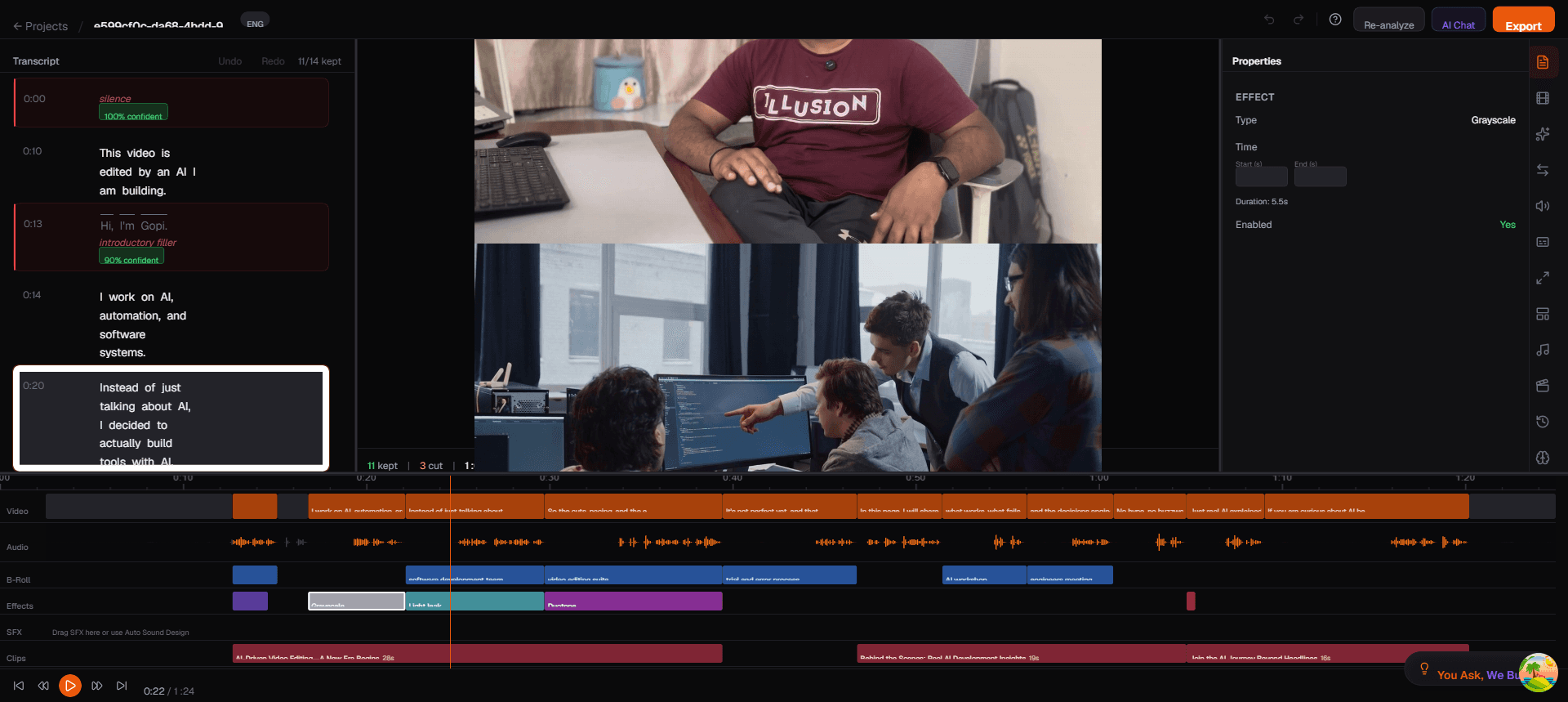
| Field | Description | How to Edit |
|---|---|---|
| Type | The effect type (e.g., Grayscale, Light Leak, Duotone, Chapter Card) | Read-only — to change the type, remove this effect and add a new one |
| Start (s) | The start time in seconds where the effect begins (e.g., 14.8) | Type a new value to reposition the effect |
| End (s) | The end time in seconds where the effect stops (e.g., 20.2) | Type a new value to change the effect duration |
| Duration | Calculated automatically from End minus Start (e.g., 5.5s) | Read-only |
| Enabled | Whether the effect is currently active (Yes/No) | Toggle to temporarily disable without deleting |
Some effects have additional parameters depending on their type (e.g., intensity, color choices, animation speed). These appear below the standard fields when applicable.
Segment Properties
When you select a video segment in the timeline, the Properties panel shows information about that segment including its time range, whether it is kept or removed, and any notes from the AI about why it was cut.
Tips
- Use precise values — The Properties panel lets you type exact timestamps for frame-accurate positioning, which is more precise than dragging on the timeline.
- Toggle, don't delete — If you are unsure about a B-roll or effect, toggle it off with the Enabled switch instead of deleting it. You can always turn it back on.
- Check duration — The Duration field updates automatically when you change Start or End, making it easy to ensure your B-roll or effect is the right length.