Captions
Add styled captions to your video — choose from 10 styles and burn them in on export.
Caption Styles
Toast generates word-level captions from your transcript and offers professionally designed caption styles. Open the Captions panel by clicking the CC icon in the right sidebar.
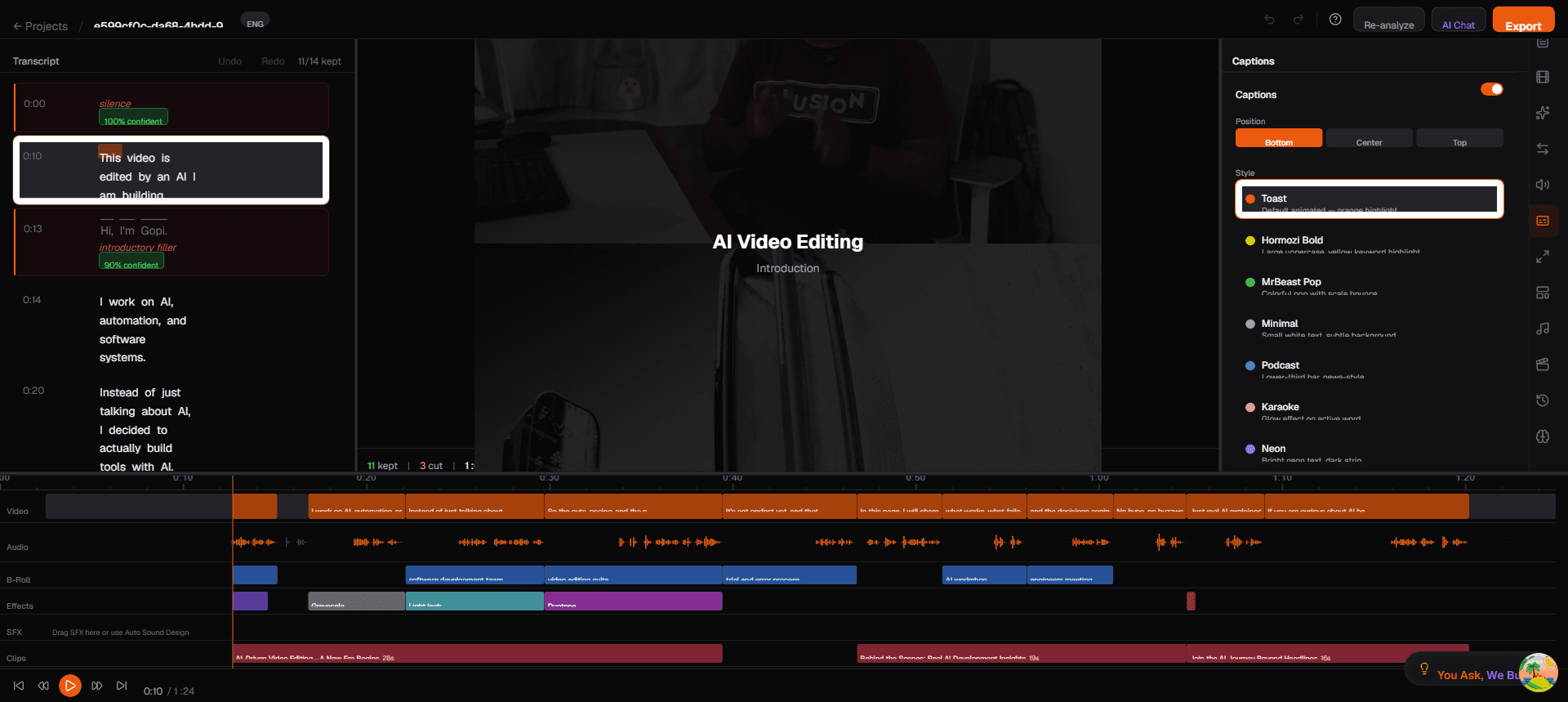
The Captions Panel
At the top of the panel is a toggle switch to turn captions on or off globally. When captions are on, they appear in the video preview in real time as the video plays.
Caption Position
Below the toggle, three position buttons let you choose where captions appear on screen:
| Position | Description |
|---|---|
| Bottom | Standard subtitle position in the lower third of the video (default) |
| Center | Captions appear in the middle of the screen — high visibility, more intrusive |
| Top | Captions appear near the top of the video — useful when bottom is crowded with UI |
Caption Style List
The main section of the panel displays a scrollable list of caption styles. Click any style to apply it immediately. The video preview updates in real time so you can compare styles quickly.
Available Styles
| Style | Look | Best For |
|---|---|---|
| Toast (default) | Bold text with an orange highlight on the active word | Default Toast branding — works well for most content |
| Hormozi Bold | Large uppercase text with yellow highlight, high-contrast | Business and motivational content where readability is critical |
| MrBeast Pop | Colorful text with scale-bounce animation on the active word | Entertainment, high-energy, and youth-oriented videos |
| Minimal | Small white text, subtle and unobtrusive | Professional presentations, corporate content |
| Podcast | Lower-third bar in a news-style layout | Podcast recordings and interview formats |
| Karaoke | Glow effect on the currently active word | Music content or lyric-style highlight |
| Neon | Bright neon-colored text on a dark strip background | Creative, trendy, nightlife-themed content |
| Typewriter | Monospace typed effect | Tech, coding tutorials |
| Handwritten | Script-style font | Personal, casual content |
| Classic | Standard subtitle look | Any general content |
Using Captions
Live Preview
Captions appear in the video preview automatically. The current word is highlighted as the video plays, synced to the transcript timestamps. Switch styles and positions while the video plays to find the best combination.
Toggle Captions
Use the toggle at the top of the Captions panel, or click the CC button on the video preview to show or hide captions during editing.
Caption Position and Safe Zones
Captions are automatically positioned with safe margins adjusted per aspect ratio:
- Landscape (16:9) — standard bottom positioning
- Vertical (9:16) — 25% bottom margin to avoid platform UI overlap (TikTok, Reels navigation buttons)
Burn-In on Export
To permanently render captions into your video:
- Go to the Export page
- Toggle Burn-in captions to on
- Select your preferred Caption style
- Export — captions are rendered as part of the video
Burned-in captions cannot be removed after export, but they ensure your captions display consistently on every platform.
SRT Download
If you prefer separate subtitle files (for YouTube's subtitle feature, for example):
- Go to the Export page
- Look for the Download SRT option
- The SRT file contains timestamps and text matching your final edited video
Tips
- Test different styles — click through styles in the preview to find the best match for your content
- Burn-in for social media — platforms like TikTok and Instagram Reels don't support separate subtitle files
- Use SRT for YouTube — YouTube's built-in subtitle system provides translation and accessibility features
- Position matters — Bottom works for most content, but try Center for short-form vertical videos where you want maximum attention on the text