AI Features
AI Chat
Edit your video with natural language — tell Toast what you want and the AI makes it happen.
Conversational Editing
The AI Chat panel lets you edit your video using natural language commands. Instead of clicking through menus, just describe what you want.
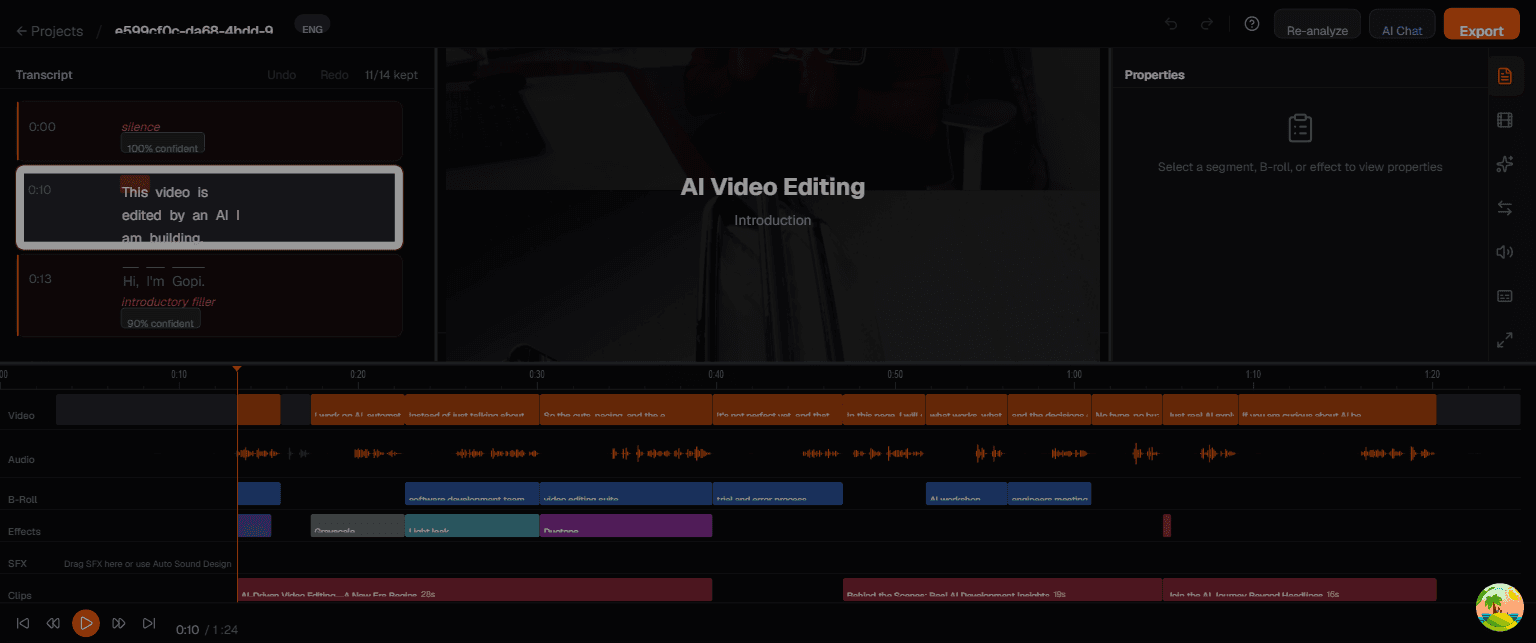
Opening AI Chat
Click the AI Chat button in the top toolbar, or press Ctrl + J. The chat panel slides in from the right side of the editor.
Suggested Commands
When you open AI Chat, you'll see quick-action suggestions:
| Suggestion | What It Does |
|---|---|
| Remove all filler sentences | Cuts every segment tagged as filler |
| Keep only the highlights | Keeps only the most impactful segments |
| Restore everything | Undoes all cuts, restoring the full video |
| Cut the intro | Removes the opening introductory segment |
| Add b-roll of city skyline | Searches and places B-roll footage |
| Zoom in on the key point | Applies zoom effect to an emphasized moment |
| Add emoji burst on the punchline | Adds engagement overlay at a specific moment |
Example Prompts
You can type free-form commands. Here are some examples:
Cutting & Trimming
- "Remove the first 30 seconds"
- "Cut everything after the conclusion"
- "Remove all segments where I say um or uh"
- "Keep only segments 3, 5, and 7"
B-Roll
- "Add B-roll of a software development team at 0:45"
- "Replace the B-roll at 1:20 with a city skyline"
Effects
- "Add a light leak effect to the intro"
- "Apply grayscale to the first segment"
General
- "Make this video shorter"
- "What are the key topics in this video?"
AI Reasoning Panel
After the AI processes your video, you can view its reasoning for each edit decision. This transparency helps you understand why certain segments were cut and whether you agree with the AI's judgment.
Tips
- Be specific — "remove the intro" works better than "clean up the beginning"
- Iterate — you can send multiple commands in sequence to refine edits
- Undo works — if the AI makes a change you don't like,
Ctrl + Zreverses it - Chat input at bottom — type your command in the text field at the bottom of the chat panel