History
View your edit history and undo or restore previous states.
Edit History
The History panel shows a chronological list of every editing action you have performed on your project. You can use it to review what has changed and jump back to any previous state.
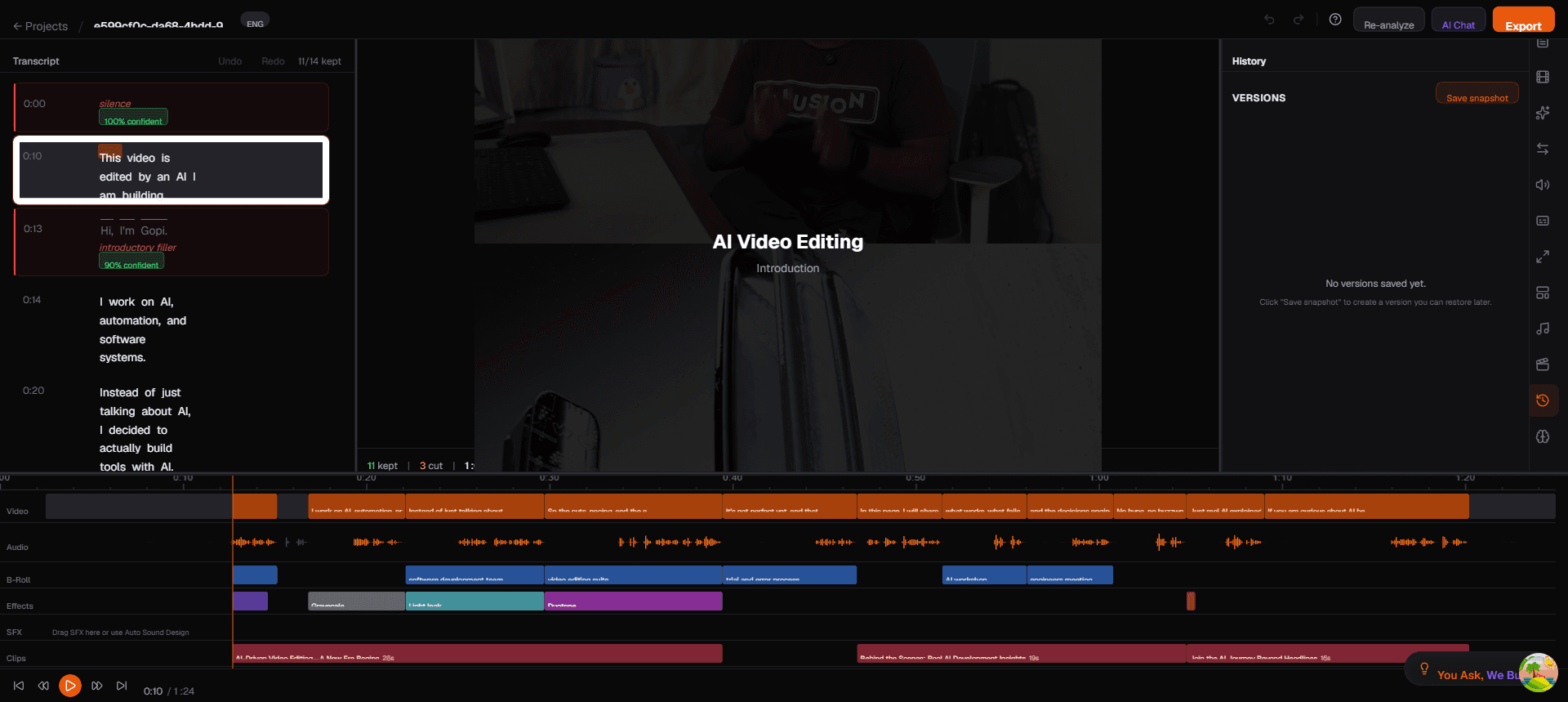
Open the History panel by clicking the History icon (clock) in the right sidebar.
How History Works
Every editing action in Toast is tracked and added to the history stack. This includes:
- Removing or restoring transcript segments
- Adding, moving, or deleting B-roll clips
- Applying or removing effects
- Changing effect parameters
- Adding or removing transitions
- Placing or deleting sound effects
- Changing caption styles or positions
- AI-initiated edits from the chat panel
History Depth
Toast keeps the last 50 operations in the undo history. Actions older than 50 operations are no longer available for undo but remain visible in the history list for reference.
Using the History Panel
Viewing History
The panel shows a list of actions from newest (top) to oldest (bottom). Each entry describes the action taken, such as:
- "Removed segment at 0:42"
- "Added B-roll: city skyline (0:20 - 0:27)"
- "Applied Grayscale effect (0:14 - 0:20)"
- "Changed caption style to Hormozi Bold"
Jumping to a Previous State
- Scroll through the history list
- Click on any entry to restore the project to that state
- All actions after that point are undone
- The video preview and timeline update immediately
Undo and Redo
You can also use the Undo/Redo buttons in the top toolbar (or keyboard shortcuts) for quick step-by-step navigation:
- Undo — Step back one action (Ctrl+Z / Cmd+Z)
- Redo — Step forward one action (Ctrl+Shift+Z / Cmd+Shift+Z)
The History panel highlights the current position in the history stack so you can see exactly where you are.
Tips
- Experiment freely — With 50 levels of undo, you can try aggressive edits and easily revert if they do not work
- Use history for comparison — Jump between states to compare how the video looked before and after a change
- History persists — Your edit history is saved with the project, so you can close the browser and come back to it later