Sound FX
Add sound effects to your video with AI-powered auto sound design and a searchable SFX library.
Sound FX
The Sound FX panel lets you enhance your video with sound effects — from subtle transitions to dramatic impacts. Toast offers both AI-powered auto sound design and a manual SFX library for full creative control.
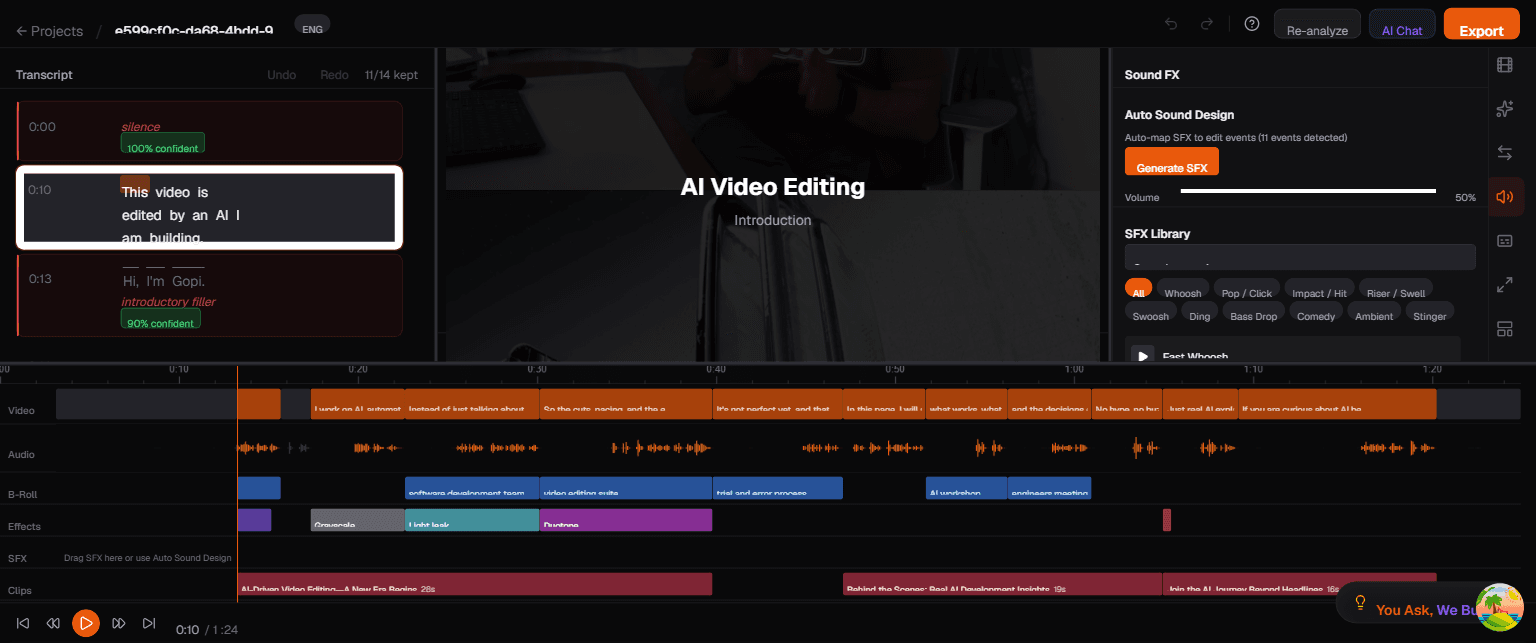
Open the SFX panel by clicking the Music/SFX icon in the right sidebar.
Auto Sound Design
At the top of the panel is the Auto Sound Design section with a Generate SFX button. This is the fastest way to add sound effects to your video.
How It Works
- Click the Generate SFX button
- The AI analyzes your transcript and edit manifest
- It automatically places appropriate sound effects at key moments — transitions, emphasis points, topic changes, and punchlines
- Generated SFX appear on the SFX track in the timeline as yellow blocks
The AI selects sounds that match the tone and content of your video. For example, a whoosh for a topic transition, a pop for a reveal, or a subtle riser before an important statement.
Volume Control
Below the Generate SFX button is a Volume slider (default: 50%) that controls the overall volume of all sound effects relative to your main audio. Drag it lower if the SFX feel too prominent, or higher if they are getting lost under the voice track.
SFX Library
Below the auto sound design section is the SFX Library — a searchable collection of sound effects you can manually browse and place.
Searching for Sounds
Use the search bar at the top of the library to find specific sounds by name or description (e.g., "whoosh", "bell", "impact").
Categories
The library is organized into categories. Click a category pill to filter the list:
| Category | Description |
|---|---|
| Whoosh | Fast movement sounds — great for transitions and swipes |
| Pop-Click | Short, snappy sounds — good for reveals and button presses |
| Impact-Hit | Heavy, dramatic hits — use for emphasis and punchlines |
| Riser-Swell | Building tension sounds — place before key moments |
| Swoosh | Smooth movement sounds — lighter than whooshes |
| Ding | Notification-style chimes — good for tips, callouts, highlights |
| Bass Drop | Deep sub-bass impacts — dramatic emphasis |
| Comedy | Funny sound effects — rimshots, boings, slide whistles |
| Ambient | Background textures — subtle atmosphere |
| Stinger | Short musical phrases — intros, outros, transitions |
Previewing and Placing Sounds
- Browse or search the library to find a sound
- Click a sound to preview it (it plays immediately)
- Drag the sound onto the SFX track in the timeline to place it at a specific position
- Adjust timing by dragging the SFX block left or right on the timeline
- Fine-tune the start time in the Properties panel for exact positioning
Each sound in the library shows its name (e.g., "Fast Whoosh") so you can quickly identify it.
Managing Sound Effects
- Move — Drag SFX blocks on the timeline to reposition them
- Delete — Select an SFX block and press Delete to remove it
- Volume — Use the global Volume slider in the SFX panel, or adjust individual SFX volume in the Properties panel
- Combine auto + manual — Run Auto Sound Design first, then add or remove individual sounds from the library to fine-tune
Tips
- Start with Auto Sound Design — Let the AI place sounds first, then adjust or remove ones that do not fit
- Subtle is better — Keep the volume slider around 30-50% so SFX enhance rather than overpower the voice
- Whooshes for transitions — A short whoosh at each cut point makes transitions feel smoother
- Risers build anticipation — Place a riser 1-2 seconds before an important statement for dramatic effect
- Less is more for professional content — Business or educational videos need fewer SFX than entertainment content