B-Roll
Search, preview, and place stock footage B-roll directly in the Toast editor.
Adding B-Roll
B-roll is supplementary footage that plays over your main video to illustrate what you're talking about. Toast integrates with Pexels and Pixabay to let you search and place B-roll directly from the editor.
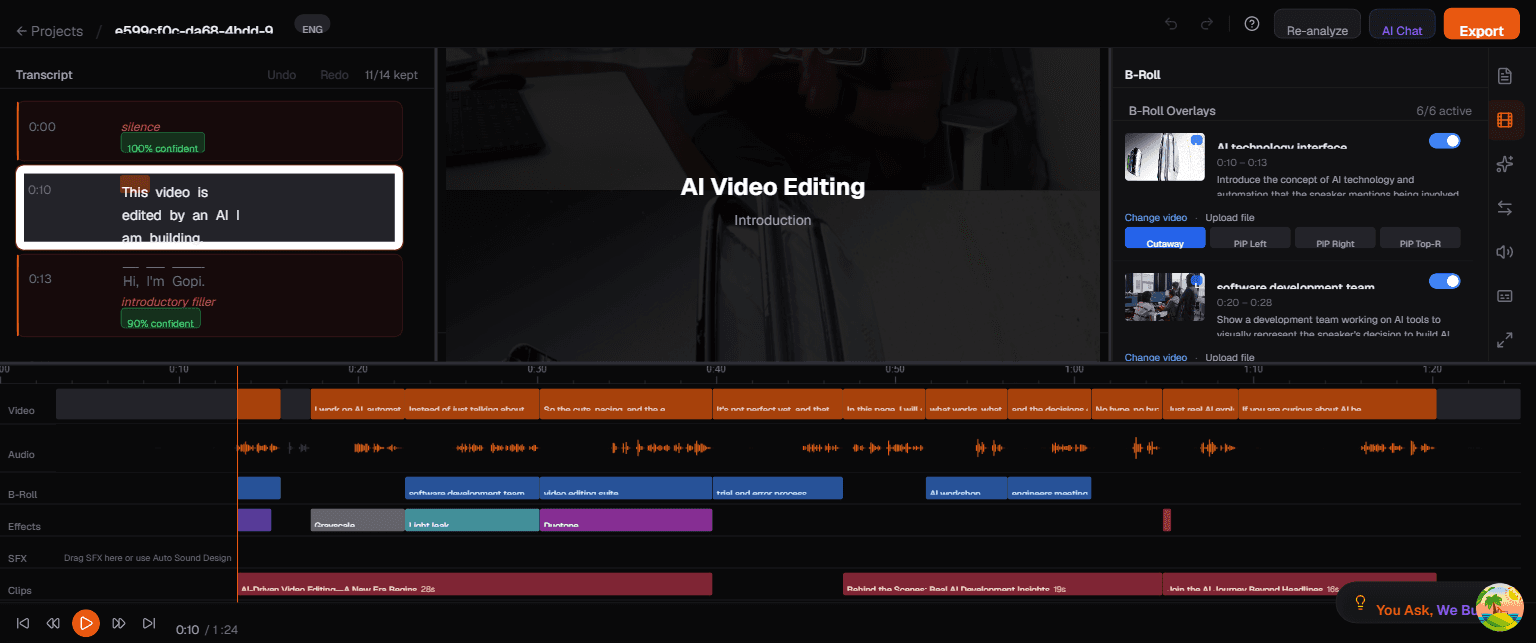
The B-Roll Panel
Open the B-Roll panel by clicking the B-roll icon in the right sidebar. The panel displays a list of all B-roll overlays currently placed in your project. Each entry shows:
- Thumbnail — A preview frame from the stock footage clip so you can identify it at a glance.
- Description — A short text label describing the clip content (e.g., "software development team", "city skyline drone shot").
- Time range — The start and end time on your video's timeline where the B-roll appears (e.g., 20.2s - 28.1s).
- Toggle switch — Enable or disable each B-roll clip individually without deleting it. Disabled clips are skipped during playback and export.
- Placement mode badge — Shows the current mode: Cutaway, PiP Left, PiP Right, or PiP Top-R.
- Change video button — Swap the current clip for a different one by searching Pexels/Pixabay.
- Upload file button — Upload your own video file from your computer instead of using stock footage.
How to Add B-Roll
- Click the B-roll icon in the right sidebar (or select a B-roll suggestion from the AI)
- Search for footage using keywords (e.g., "coding", "city skyline", "team meeting")
- Preview clips by hovering over them
- Click a clip to place it on the B-roll track at the current playhead position
- Drag the edges of the B-roll block on the timeline to trim its duration
B-Roll Modes
Toast offers four placement modes for B-roll. You can switch modes using the dropdown on each B-roll entry in the panel.
Cutaway Mode
The B-roll replaces the main video for its duration. The main video's audio continues playing underneath. This is the default mode — useful for covering jump cuts or illustrating a topic.
PiP Left
The B-roll appears as a picture-in-picture window positioned on the left side of the screen. The main video continues playing at full size behind it. Good for showing a reference image while keeping the speaker visible.
PiP Right
Same as PiP Left, but the picture-in-picture window is positioned on the right side of the screen.
PiP Top-R (Top Right)
The picture-in-picture window is positioned in the top-right corner of the screen. Useful for smaller reference images or logos.
Changing or Uploading B-Roll
You are not limited to the AI's initial suggestions. For any B-roll entry:
- Click Change video to open the stock footage search. Type a new keyword and pick a different clip from Pexels or Pixabay.
- Click Upload file to use your own footage. Select a video file from your computer and it will be stored locally in OPFS (your video never leaves your device).
AI-Suggested B-Roll
When Toast processes your video, the AI analyzes the transcript and suggests B-roll placements. These appear as blue blocks on the B-roll track with relevant search terms already filled in. You can:
- Accept the suggestion as-is
- Replace it with a different clip by searching or uploading
- Toggle off a suggestion temporarily without deleting it
- Remove it by selecting and deleting
Tips
- Short clips work best — 3-8 seconds of B-roll per placement keeps the pacing dynamic
- Match the topic — B-roll should visually relate to what's being discussed at that moment
- Don't overuse it — B-roll every 30-60 seconds is a good cadence for talking-head videos
- Check the preview — always play through B-roll placements to make sure the timing feels natural
- Try PiP modes — if cutaway feels too abrupt, a PiP overlay lets the viewer still see you speaking