Quick Start Guide
Edit your first talking-head video with Toast in under 5 minutes.
Your First Edit in 5 Minutes
This guide walks you through uploading a video, letting AI edit it, and exporting the final result.
Step 1: Upload Your Video
- Go to toast.video and sign in
- Click New Project on the projects page
- Drag and drop your video file (or click to browse)
- Toast supports most video formats up to 10 GB
Toast will begin processing your video immediately. This happens entirely in your browser — your video never leaves your device.
Step 2: Wait for Processing
Toast runs a multi-step pipeline on your video:
| Step | What Happens | Time |
|---|---|---|
| Audio extraction | Separates audio from video | ~10 seconds |
| Noise analysis | Checks audio quality (SNR) | ~5 seconds |
| Transcription | Word-level transcription via ElevenLabs Scribe | ~30 seconds |
| Face tracking | Detects face position for smart reframe | ~15 seconds |
| AI analysis | Claude analyzes content and suggests edits | ~20 seconds |
You'll see a progress indicator for each step. Total processing time is typically 1-2 minutes for a 10-minute video.
Step 3: Review AI Edits
Once processing completes, you'll land in the editor. The AI has already:
- Removed filler words ("um", "uh", "like", "you know")
- Cut long pauses and dead air
- Identified key segments to keep
- Suggested B-roll placements
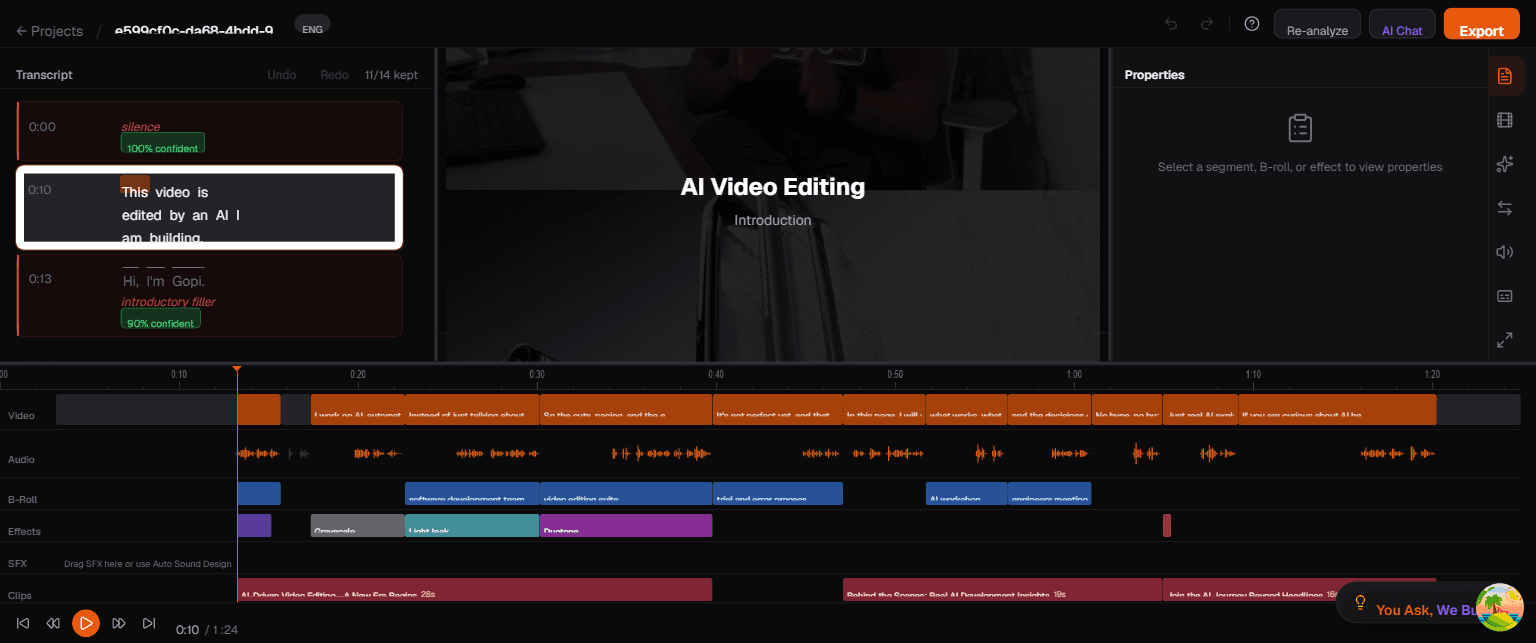
The transcript panel (left) shows your video's transcript. Segments with a strikethrough are removed. Orange-highlighted text marks filler words. You can click any word to jump to that point in the video.
Step 4: Fine-Tune (Optional)
You can adjust the AI's edits:
- Restore a cut segment: Click on a struck-through segment in the transcript to restore it
- Remove more content: Click on a kept segment to remove it
- Use AI Chat: Click AI Chat in the top-right and type natural language commands like:
- "Remove all filler sentences"
- "Keep only the highlights"
- "Cut the intro"
Step 5: Export
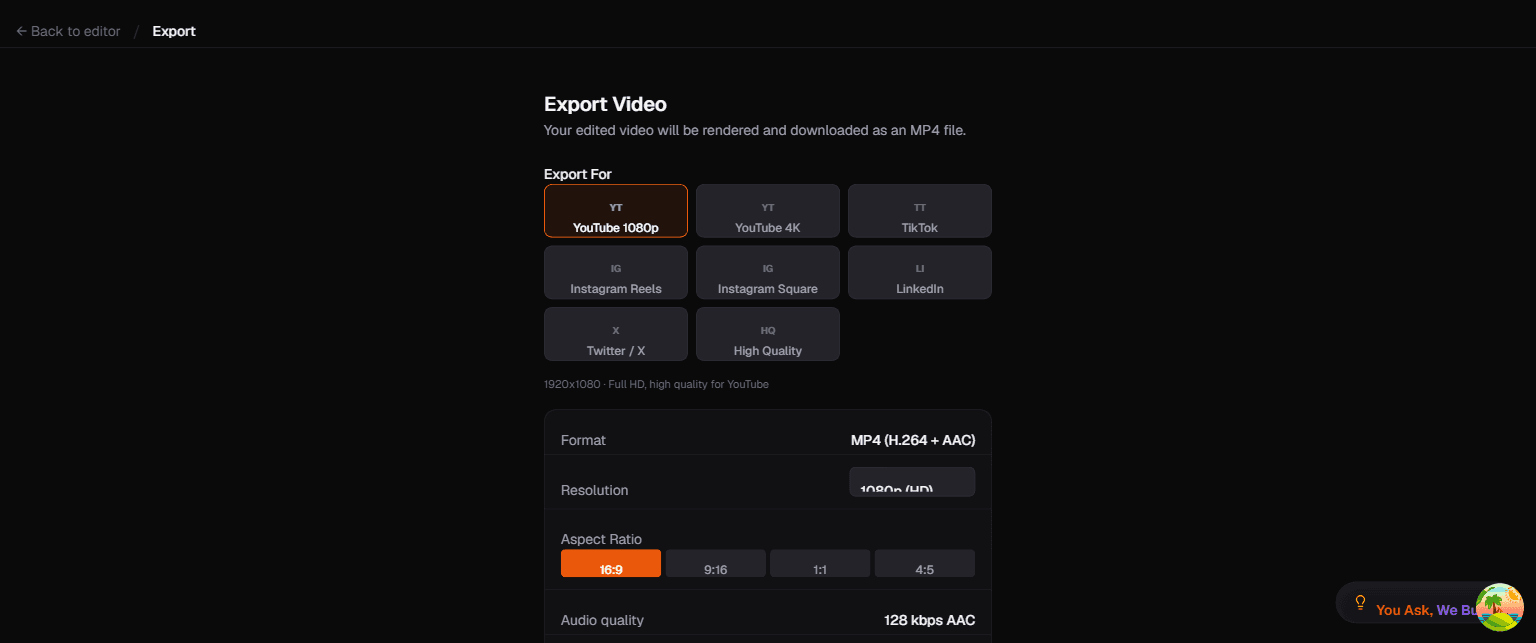
- Click the orange Export button in the top-right corner
- Choose a platform preset (YouTube 1080p, TikTok, Instagram Reels, etc.)
- Configure options:
- Resolution: 720p, 1080p, or 4K
- Aspect ratio: 16:9, 9:16, 1:1, or 4:5
- Captions: Toggle burn-in captions and choose a style
- Click Export Video
- Your video renders in the browser and downloads automatically
Next Steps
- Editor Layout — Deep dive into the four main panels
- Transcript Editor — Master text-based editing
- AI Chat — Learn what you can ask the AI
- Templates & Captions — Style your video for different platforms