Visual Effects & Transitions
Apply GPU-accelerated visual effects and transitions to your video segments.
Visual Effects
Toast includes 24 GPU-accelerated visual effects powered by WebGPU, plus 13 transition effects between segments. There are two separate panels for working with visual enhancements: the Video Effects panel for global color adjustments and the Effects panel for per-segment creative effects.
Video Effects Panel
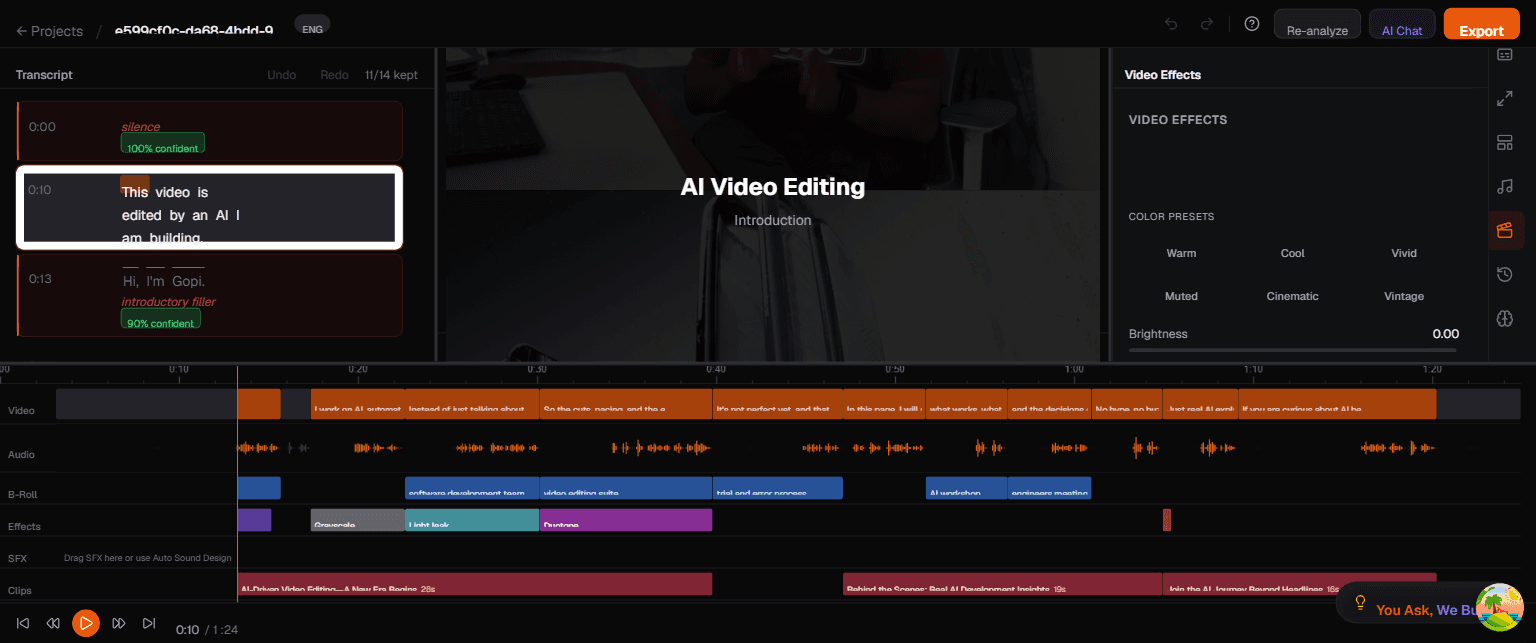
The Video Effects panel provides global color and image adjustments that apply to your entire video. Open it by clicking the Video Effects icon in the right sidebar.
Auto Enhance
At the top of the panel is the Auto Enhance toggle. Turn it on and Toast automatically adjusts brightness, contrast, and saturation to improve the overall look of your footage. This is a good starting point if your video looks flat or underexposed.
Color Presets
Below Auto Enhance, you will find six one-click Color Presets that instantly change the mood of your video:
| Preset | Description |
|---|---|
| Warm | Adds warm orange/yellow tones — great for a cozy, inviting feel |
| Cool | Shifts toward blue tones — clean, professional look |
| Vivid | Boosts saturation for punchy, vibrant colors |
| Muted | Desaturates slightly for a calm, understated aesthetic |
| Cinematic | Applies a film-grade color profile with crushed blacks and lifted shadows |
| Vintage | Faded look with warm highlights and muted shadows |
Click any preset to apply it. Click it again to remove it. Only one preset can be active at a time.
Manual Sliders
For fine-grained control, use the sliders below the presets:
- Brightness — Make the image lighter or darker
- Contrast — Increase or decrease the difference between light and dark areas
- Saturation — Boost or reduce color intensity
Sliders work in combination with presets. Apply a preset first, then fine-tune with sliders.
Effects Panel
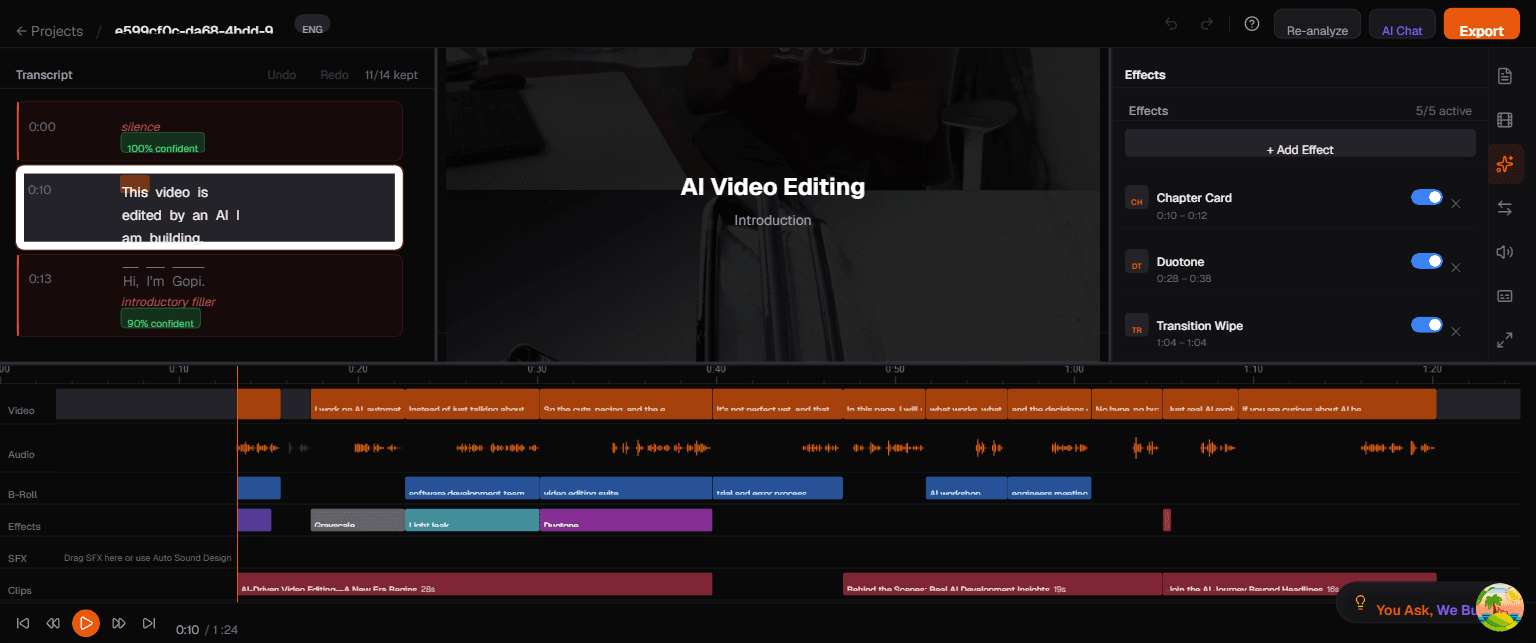
The Effects panel manages per-segment creative effects — visual treatments applied to specific time ranges in your video. Open it by clicking the Effects icon (sparkle) in the right sidebar.
The Effects List
The panel shows all active effects with:
- Effect count at the top (e.g., "5/5 active")
- Each effect entry showing its name, type, time range, and an on/off toggle
- +Add Effect button at the bottom to add new effects
Example effects you might see:
- Chapter Card — A title card overlay that introduces a new section
- Duotone — Two-color stylization applied to a specific segment
- Transition Wipe — A wipe animation between segments
Adding a New Effect
- Click the +Add Effect button
- Choose an effect type from the list
- Set the time range (start and end time)
- Toggle the effect on or off as needed
- Fine-tune parameters in the Properties panel when the effect is selected
Managing Effects
- Toggle on/off — Use the switch next to each effect to enable or disable it without deleting
- Adjust time range — Click on an effect to select it, then edit start/end times in the Properties panel
- Remove — Select an effect and press Delete, or right-click and choose Remove
Effect Categories
Color Effects
- Grayscale — Convert to black and white
- Sepia — Warm vintage tone
- Duotone — Two-color stylization
- Color Temperature — Warm or cool shift
- Saturation — Boost or reduce color intensity
Lighting Effects
- Light Leak — Film-style light bleed
- Vignette — Dark edges, bright center
- Bloom — Soft glow on highlights
- Film Grain — Cinematic grain texture
Stylistic Effects
- Blur — Gaussian or motion blur
- Glitch — Digital distortion
- Pixelate — Retro pixel effect
- Sharpen — Enhance detail and clarity
Transitions Panel
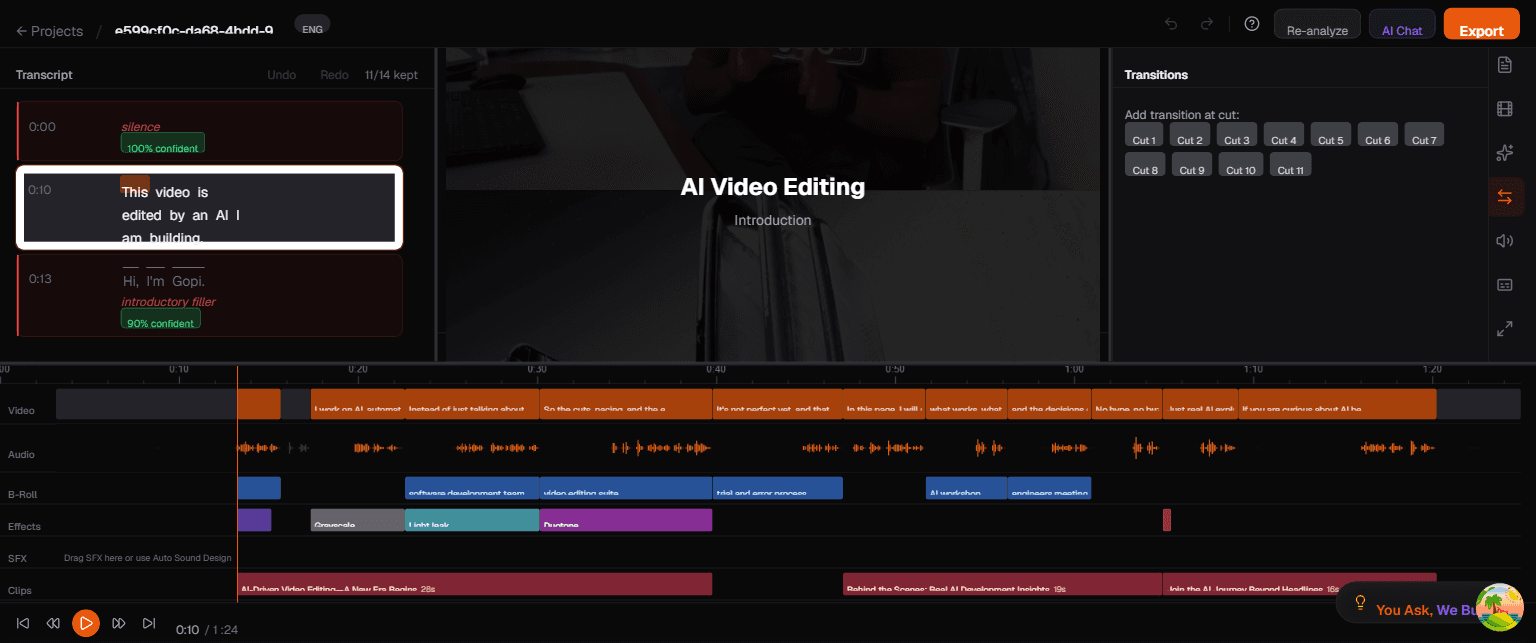
The Transitions panel lets you add animated transitions at specific cut points in your video. Open it by clicking the Transitions icon in the right sidebar.
How Transitions Work
When Toast removes segments from your video (filler words, silence, etc.), it creates cut points where two segments meet. Without a transition, these are hard cuts. Adding a transition creates a smooth visual bridge between segments.
Adding Transitions at Cut Points
The panel displays numbered buttons for each cut point in your video (e.g., Cut 1, Cut 2, ... Cut 11). To add a transition:
- Click a Cut button (e.g., "Cut 3") to select that cut point
- Choose a transition type from the available options
- The transition is applied at that specific cut point
- Preview it by playing through that section of the video
Available Transition Types
- Fade — Smooth opacity transition
- Dissolve — Cross-dissolve between segments
- Wipe — Directional reveal
- Slide — Push in from a direction
- Zoom — Scale transition
Adjusting Transitions
- Duration — Default is 0.5 seconds; adjust shorter for snappy cuts or longer for dramatic effect
- Remove — Click the cut point button again and select "None" to remove the transition
Transitions are rendered using inline canvas-snapshot blending during export for frame-accurate results.
Tips
- Less is more — one or two subtle effects per video maintain professionalism
- Grayscale + zoom is a popular combination for flashback or emphasis moments
- Light leak adds cinematic production value with minimal effort
- Effects are non-destructive — remove them anytime without affecting the original video
- Video Effects are global — they affect the entire video, while Effects panel items target specific time ranges
- Transitions smooth out cuts — if your video has many short cuts, adding a few fade transitions can make it feel more polished